- In private beta
- Planned
- Design direction
Features and their boundaries
What each part of the desktop app does in the private beta or is designed to do, what it does not do, and who it suits. Every feature carries its status. Nothing here is open to everyone yet.
- Attention and project state
- Decisions, commitments, and follow-through
- Source-grounded Draft Studio
- Capture, intentional imports, and recall
- Local AI and user control
- Connected assistants
- Calendar and work-tool connections
- Project Ask
- Native desktop settings
The private beta is a desktop app for Macs with Apple silicon.Status: In private beta
Clarni is being built to be fully usable from the keyboard.Status: In development
Clarni works alongside your existing tools rather than replacing your task tracker, email, or documents: you bring work in by typing, pasting, recording or importing a calendar file, and take drafts out by copying them.Status: In private beta
Examples use the Atlas launch, the fictional project followed step by step on the how it works page.
- In private beta
Attention and project state
Shows what is true now across decisions, commitments, tasks, and risks, what changed, and, in Today, what needs you next and why.
A project ledger keeps a history of decisions and risks so you can see what changed over time.Status: In private beta
Clarni turns what you capture into proposed decisions, commitments, tasks, and risks that each point back to their source, and you confirm each one.Status: In private beta
Today brings forward what needs you next, such as meetings, commitments coming due, and eligible tasks and follow-ups.Status: In private beta
A current project state you can trust
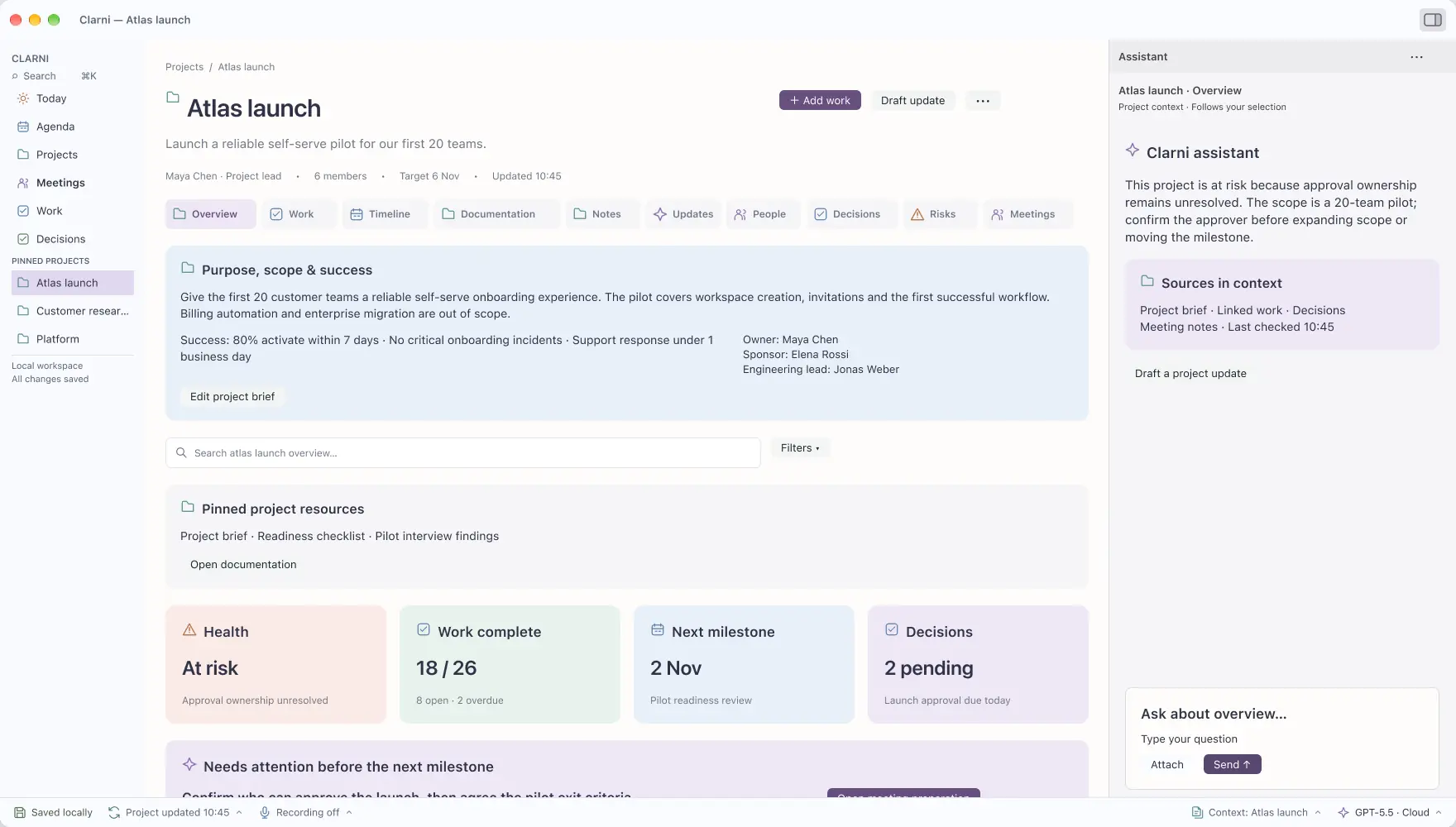
Design preview macOS Light
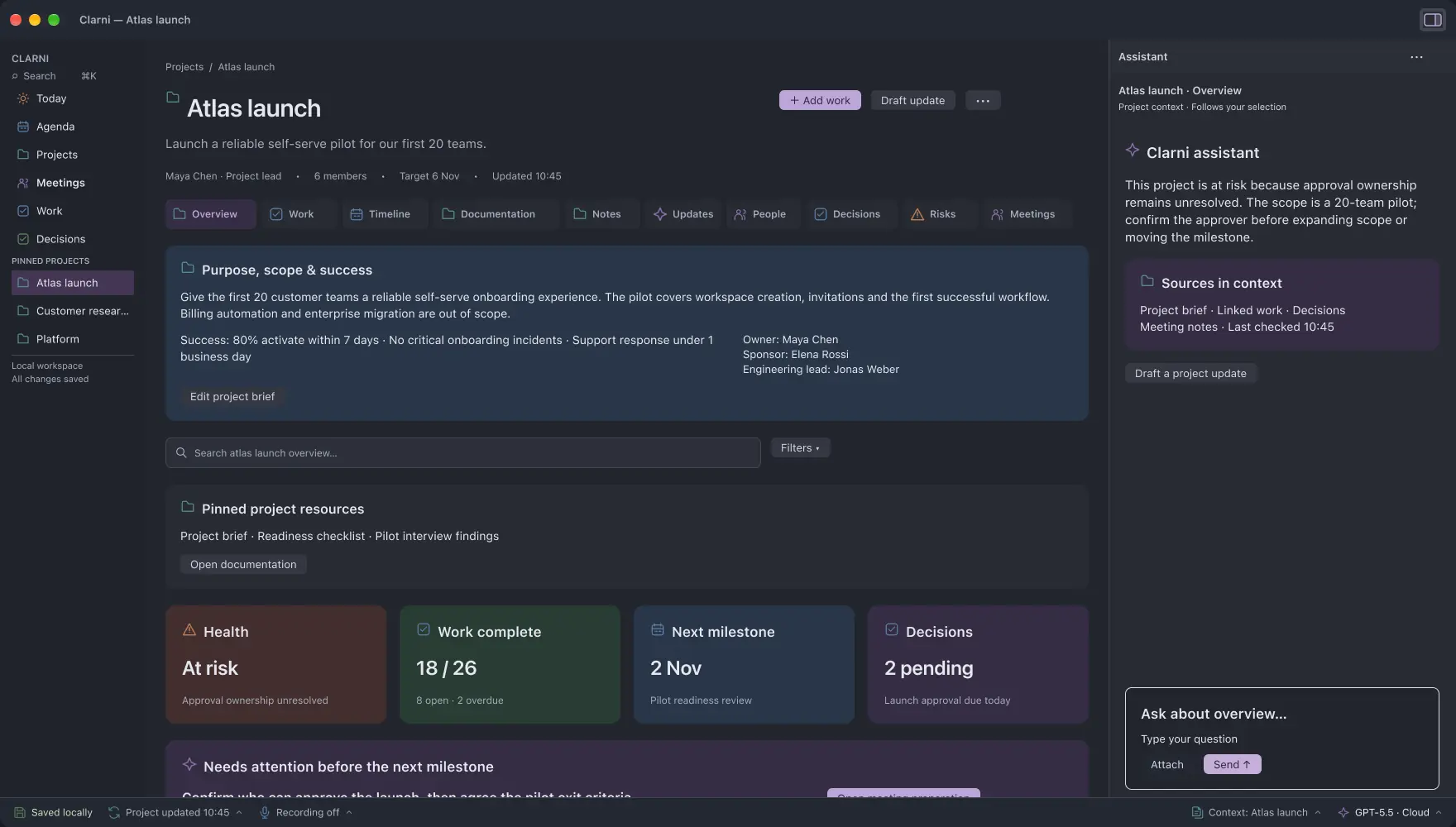
Design preview macOS Dark
Design preview macOS Light
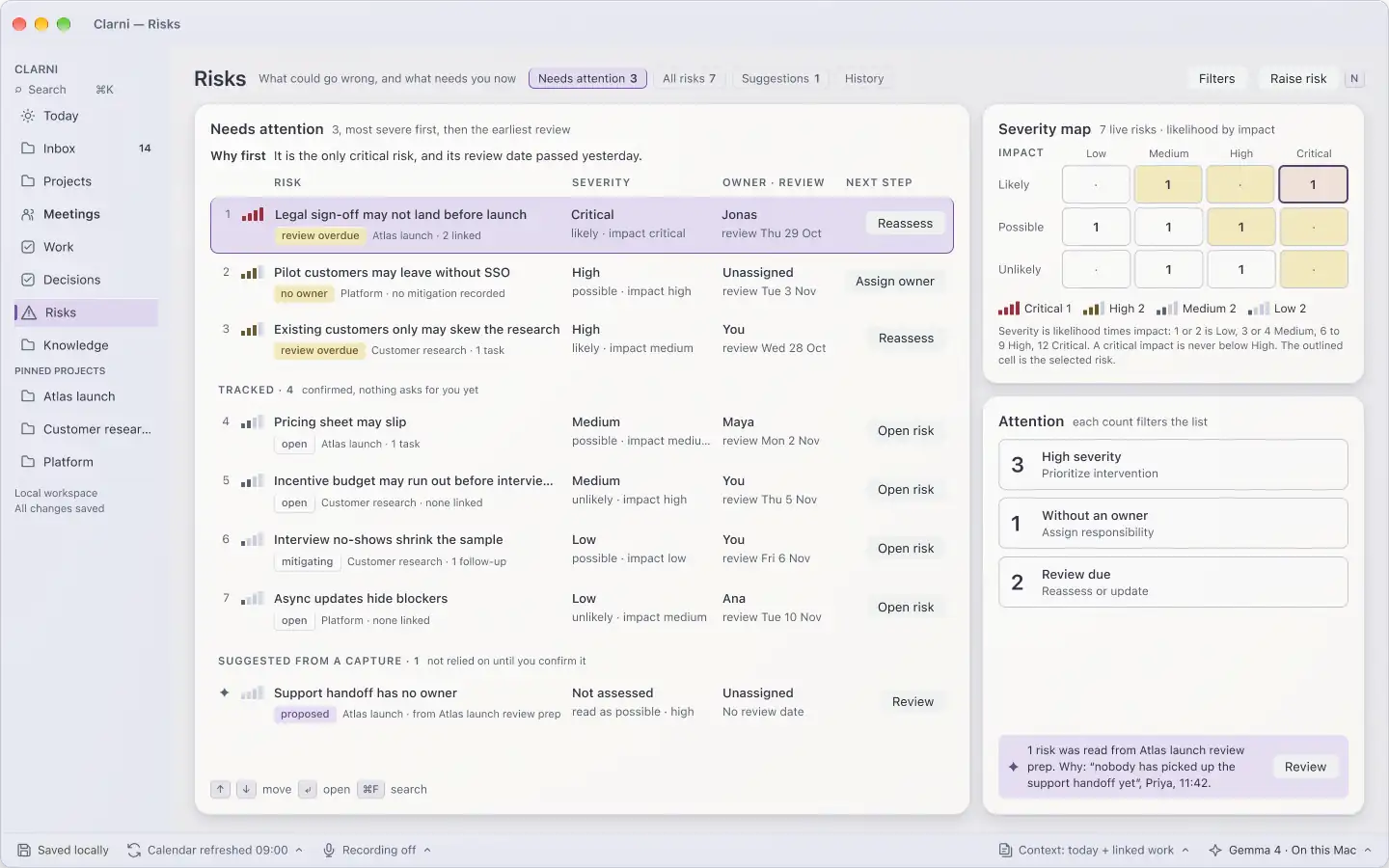
Detail — Selected legal risk
Detail — Severity map for the selected risk
Design preview macOS Dark
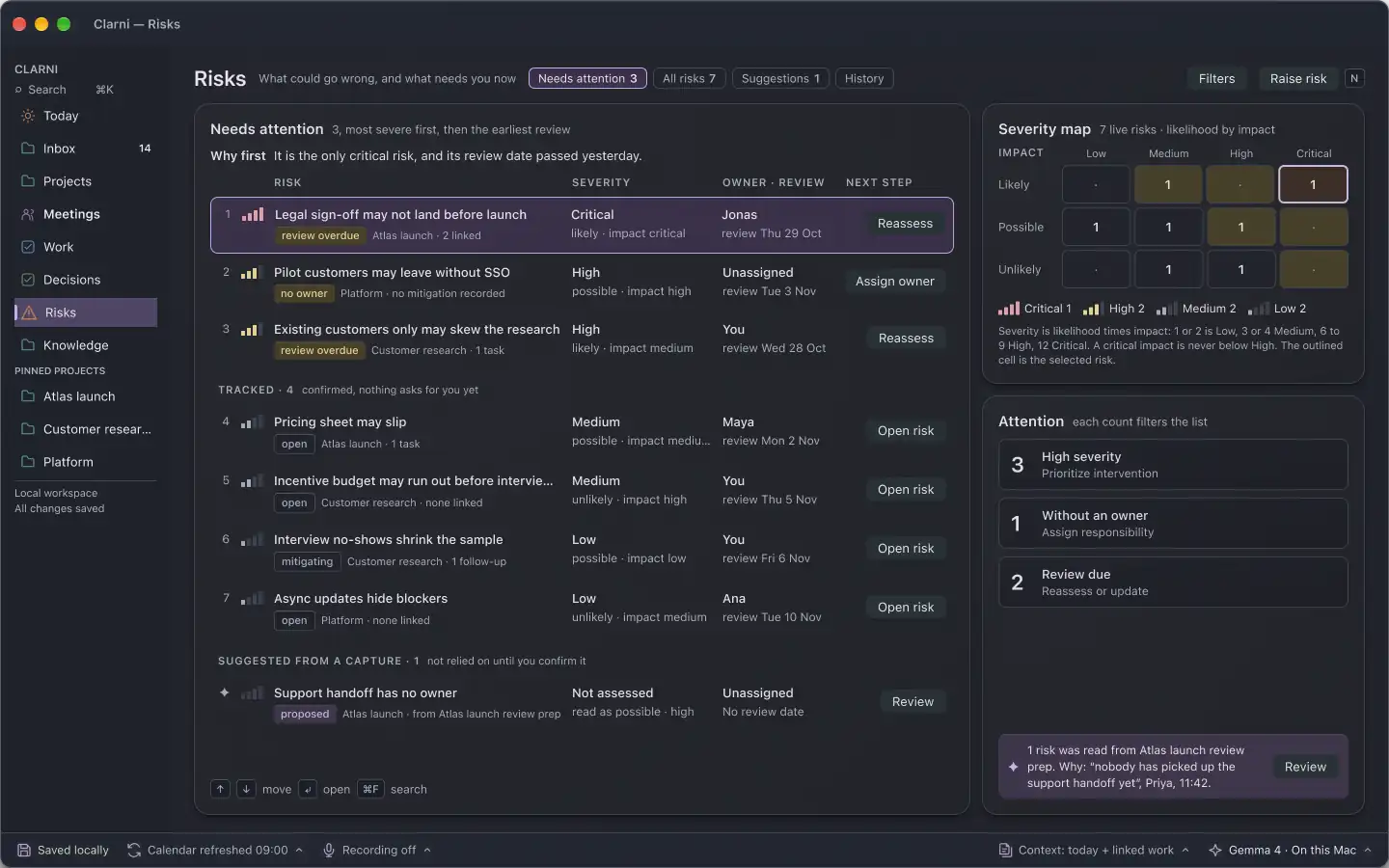
Detail — Selected legal risk
Detail — Severity map for the selected risk
- The problem
After a week of calls and documents, where a client project stands lives in your head and in scattered notes. Working out what changed, what was decided, and what is now waiting on you means rereading everything.
- The outcome
You open a project and see what is true now: a current project state across decisions, commitments, tasks, and risks, a history of what changed and when, and which items need you next, each pointing back to its source receipt, so you can choose the next safe move.
- What it owns
- A current project state across decisions, commitments, tasks, and risks, each linked to its source receipt.
- A history of what changed and when: a decision can be superseded or reversed without losing what came before.
- Today’s Now and Next queue brings forward meetings, commitments coming due, and eligible tasks and follow-ups.
- What it does not own
- It is not designed as a project-management suite or an issue tracker, and your task tracker stays where it is.
- Today does not assign, send, score, or change records on your behalf.
- How it works
- Records you have confirmed from your sources make up the project state.
- When a later conversation changes something, the earlier version stays in the history.
- What needs you next comes forward with its receipt, and you decide what to act on.
Illustrative example: Atlas launch Atlas keeps the confirmed pilot decision distinct from the legal sign-off that still needs review.
- Privacy and control
- Each item is traceable to its source receipt, so you can check why it is there.
- You decide what to act on. Nothing in the queue happens without you.
- Status and caveat
Status: In private beta
In private beta, on Macs with Apple silicon: project state, its history, and Today. Suggestions can be wrong, so you decide what to act on.
- Who early access suits
Studio leads and consultants who run several client projects at once and lose time rebuilding where each one stands.
- Who should not join for this
Anyone looking for a replacement project-management or issue-tracking suite, or for scores and reports on how people work.
- In private beta
Decisions, commitments, and follow-through
A decision is a choice with its rationale. A commitment is a promise to deliver something for someone. Both stay distinct from tasks and risks, and point back to where they were made.
Clarni turns what you capture into proposed decisions, commitments, tasks, and risks that each point back to their source, and you confirm each one.Status: In private beta
Each decision, commitment, or task can show the source it came from, such as the passage it was taken from or a meeting transcript excerpt with its timestamp.Status: In private beta
AI-suggested commitments and tasks are proposals you review first; Clarni does not silently assign obligations.Status: In private beta
Commitments and tasks that point to their source
Design preview macOS Light
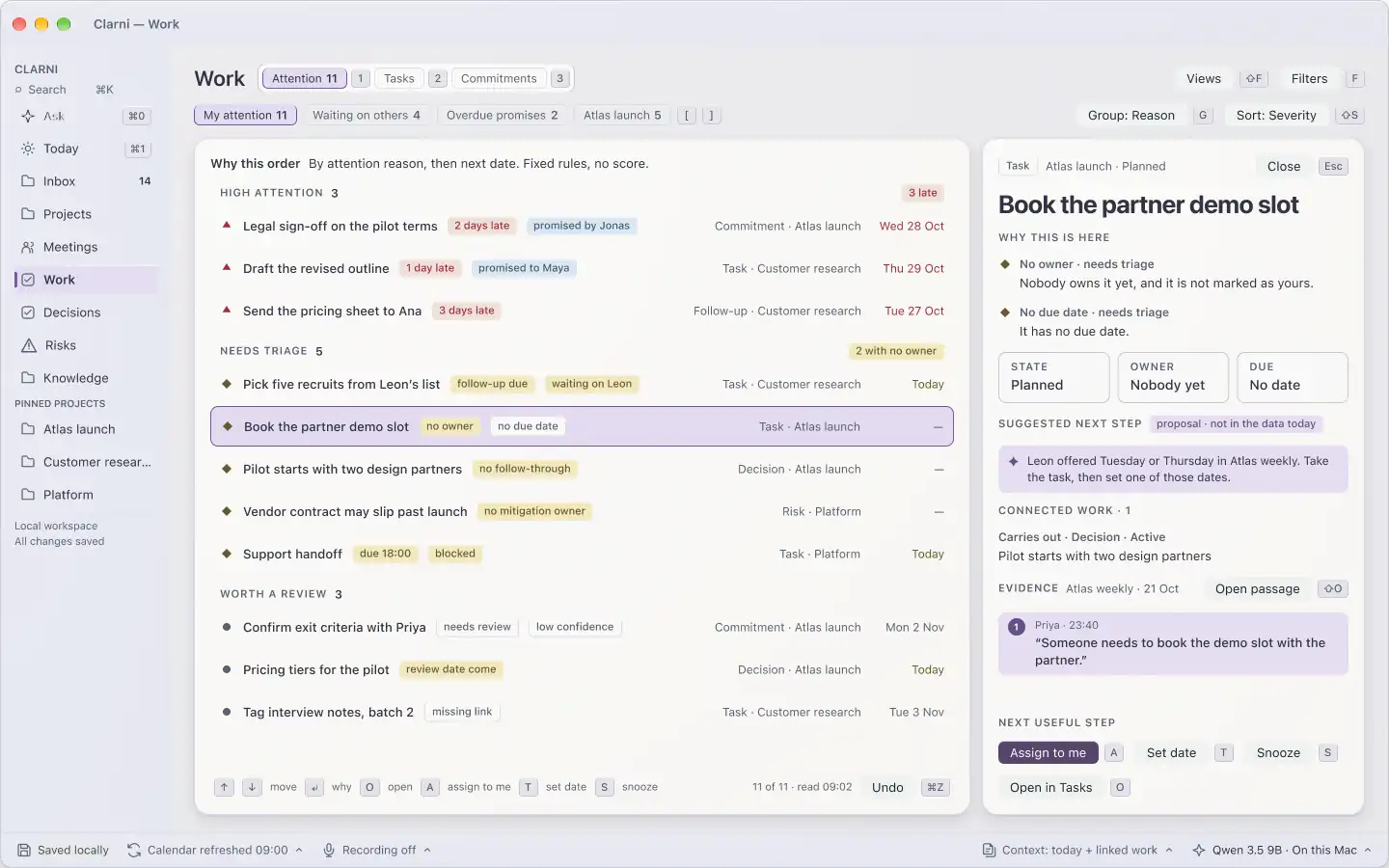
Detail — Selected task and evidence
Design preview macOS Dark
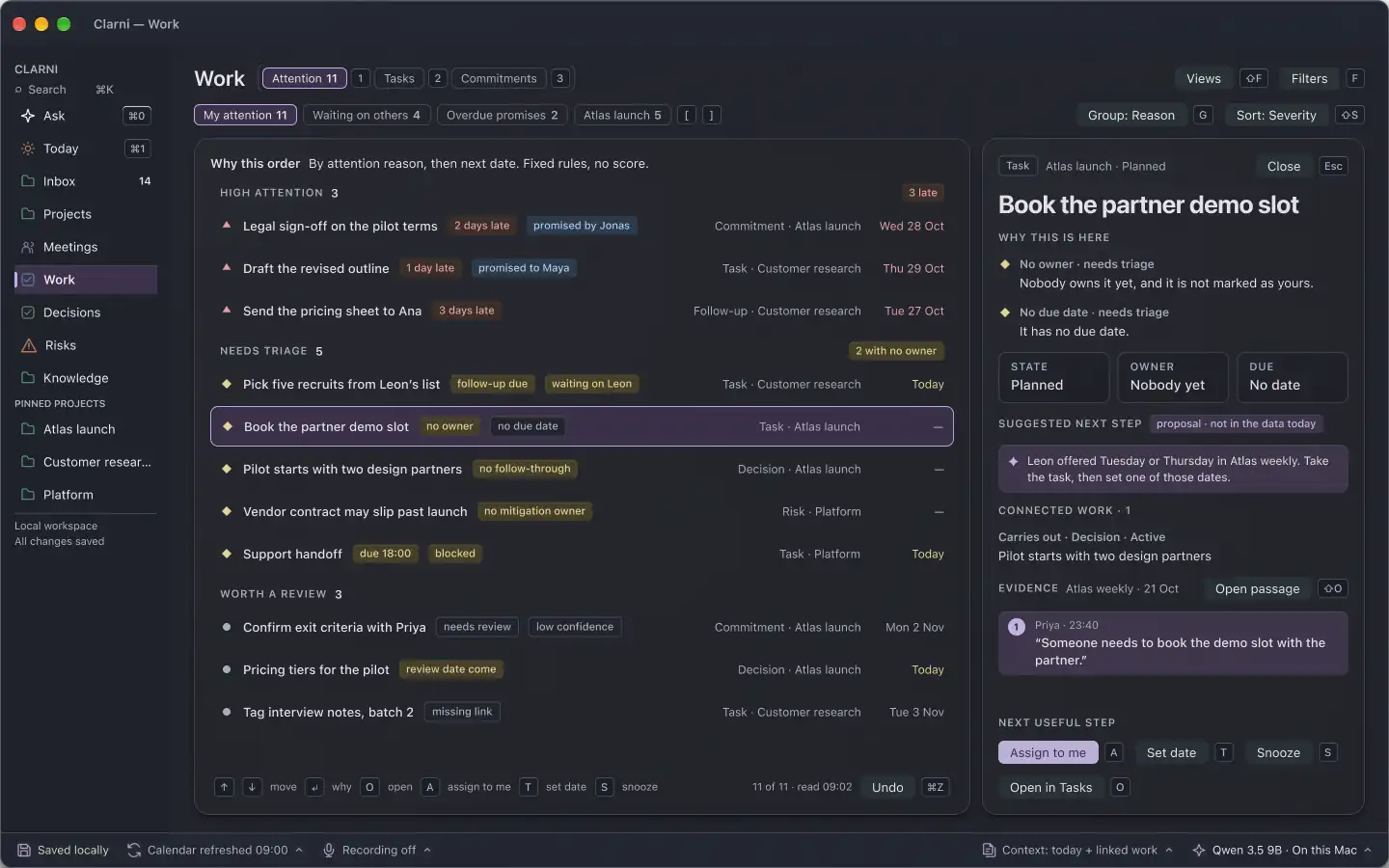
Detail — Selected task and evidence
Design preview macOS Light
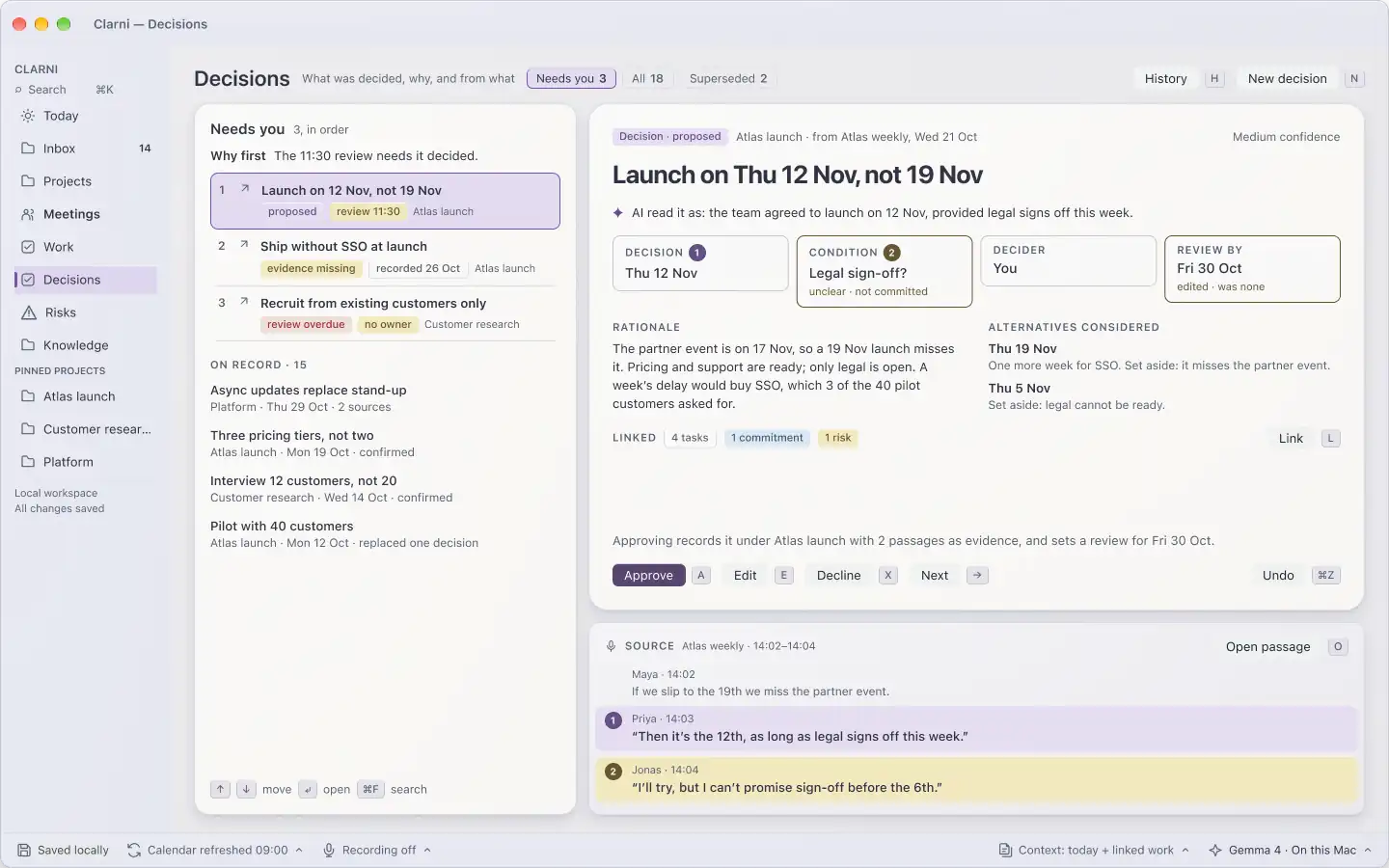
Detail — Legal sign-off condition
Detail — Atlas weekly source excerpts
Design preview macOS Dark
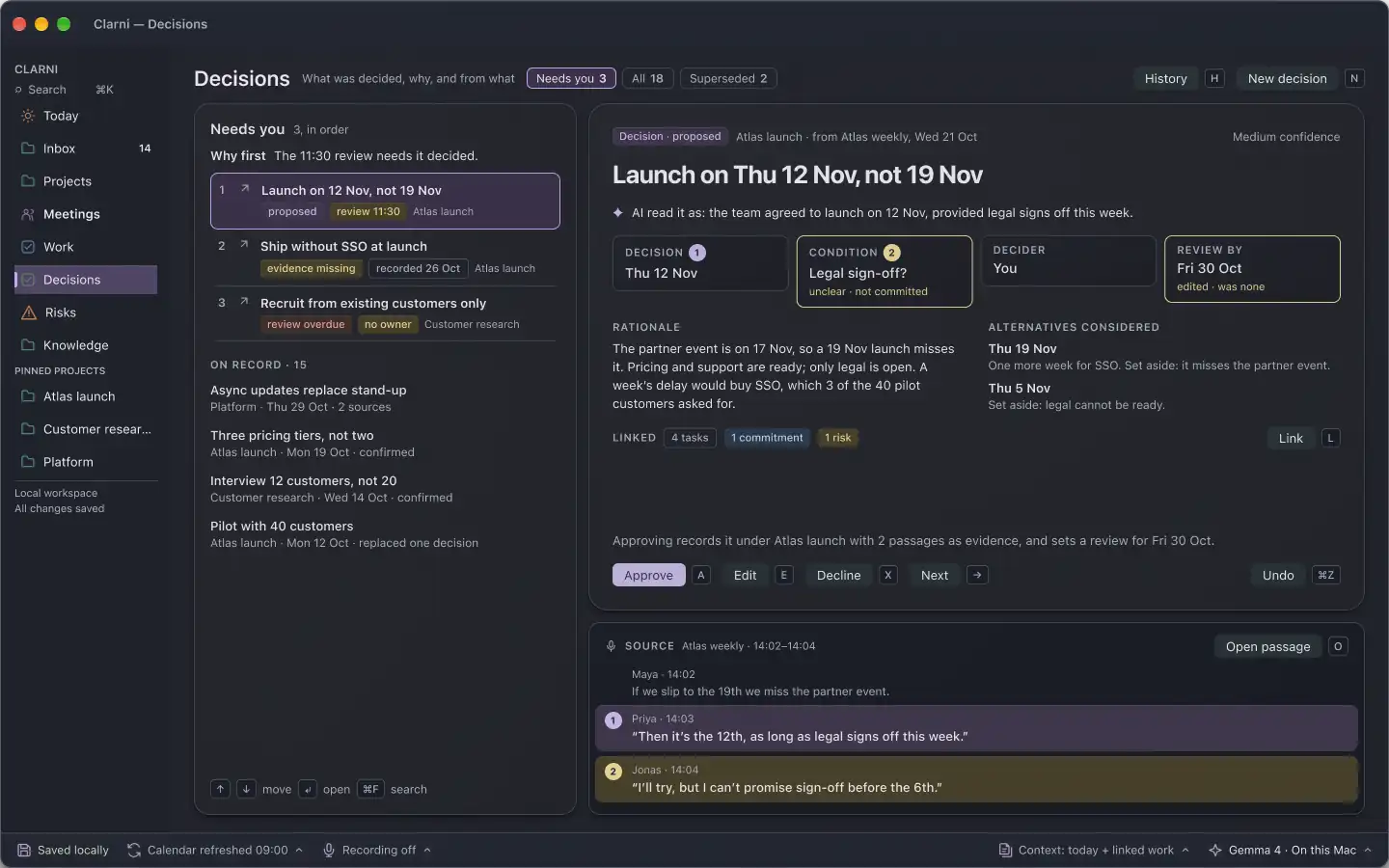
Detail — Legal sign-off condition
Detail — Atlas weekly source excerpts
- The problem
Promises made on calls slip because nobody wrote down who owes what, to whom, by when, or where it was agreed. Action items get turned into flat tasks, and later it is one memory against another.
- The outcome
Each decision and commitment is kept distinct from tasks and risks: decisions with their rationale, commitments with who owes them and whether they are fulfilled, tasks with their completion, and risks with their uncertainty, all pointing to their source receipt.
- What it owns
- Decisions with their rationale and history, kept apart from commitments, tasks, and risks.
- Commitments with who owes them, who they are owed to, an agreed date, and whether they have been fulfilled, distinguishing commitment fulfilment from task completion.
- AI proposals that wait in an inbox for triage, where suggestions remain proposals until you review them.
- Links from each record to the tasks, risks, and reminders it affects, and to its source receipt.
- What it does not own
- It does not turn every action item into a commitment, or assign anything to anyone without your review.
- AI proposals are not confirmed records: suggestions can be wrong or uncertain, and Clarni does not treat extracted items as verified facts.
- Your task tracker and email stay where they are; Clarni sits alongside them.
- How it works
- Suggestions from a source arrive as proposals, each with its source receipt.
- You review proposals in the inbox: confirm, edit, or reject each one. Extraction can be wrong.
- Confirmed items are kept as distinct records, and reminders surface as commitments come due.
Illustrative example: Atlas launch The two-partner pilot is confirmed. “Jonas sends legal sign-off” is a separate proposal with an unclear date.
- Privacy and control
- Nothing enters the record, or is assigned to anyone, until you review it.
- You can open the receipt behind any record and check it against what was said or written.
- Status and caveat
Status: In private beta
In private beta. Suggestions are proposals and can be wrong or uncertain, so reviewing them stays with you.
- Who early access suits
Consultants and studio leads who make and receive promises across many client calls and need to show where each one came from.
- Who should not join for this
Anyone who wants obligations assigned or tracked without reviewing them first.
- In private beta
- Planned
Source-grounded Draft Studio
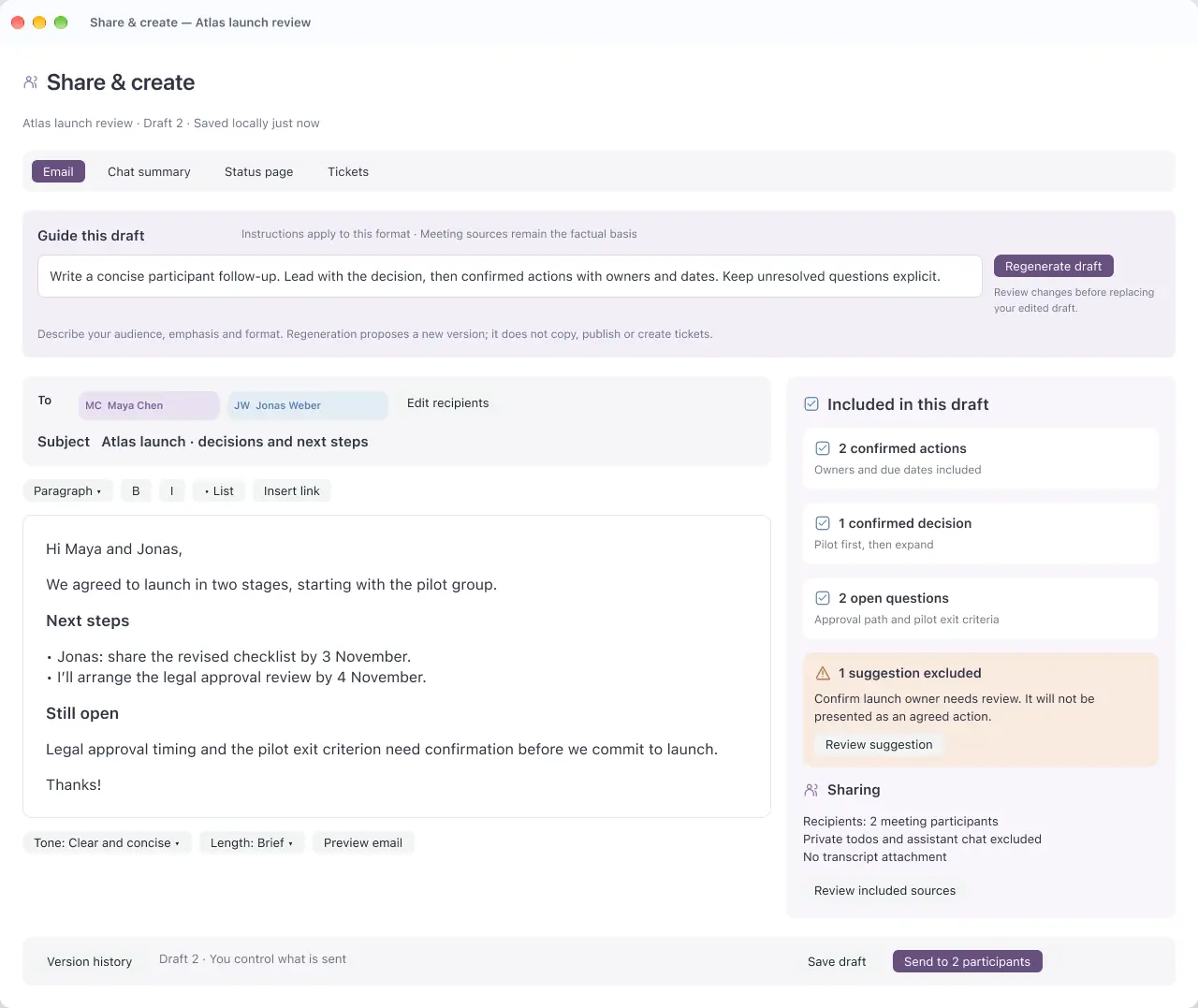
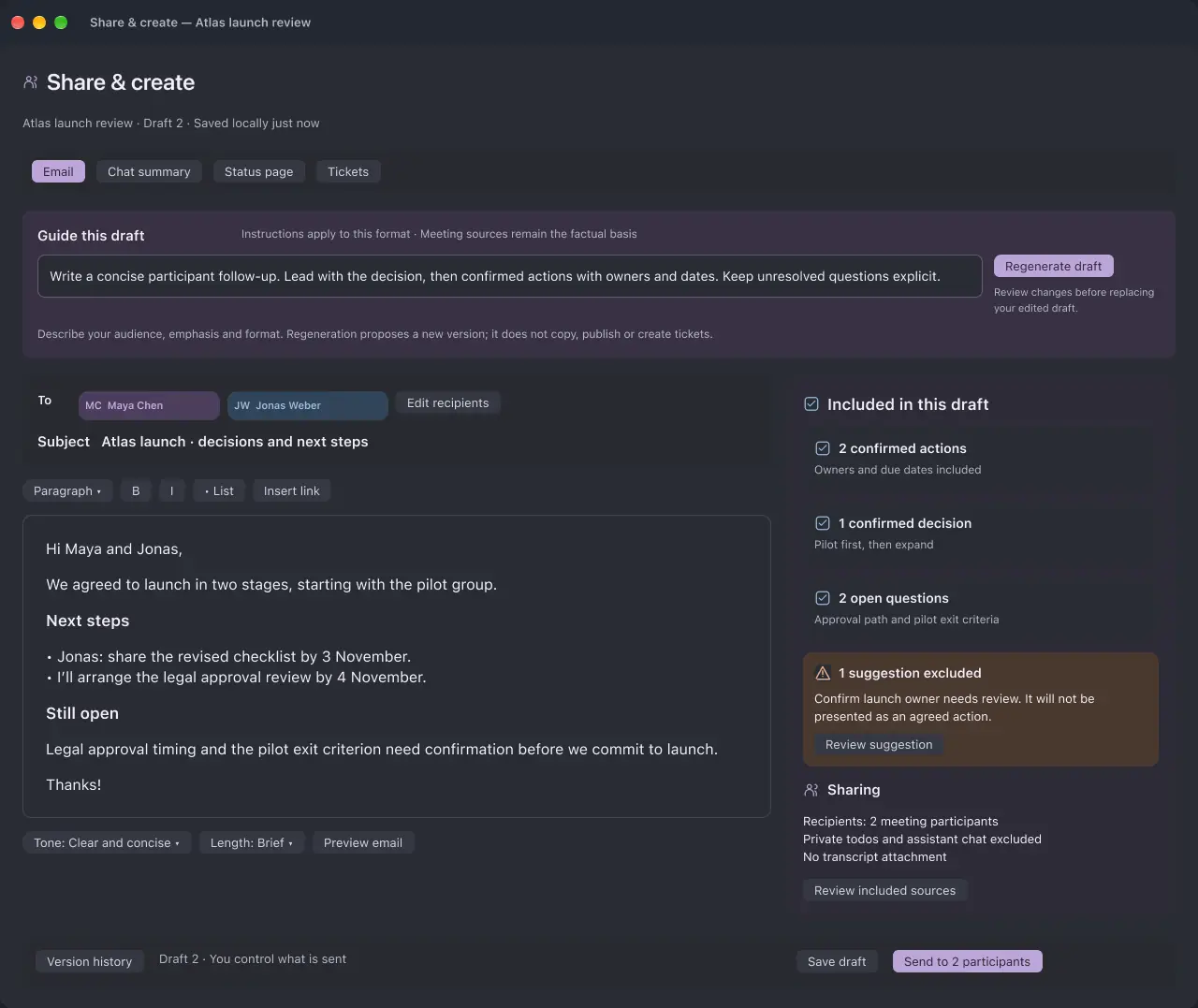
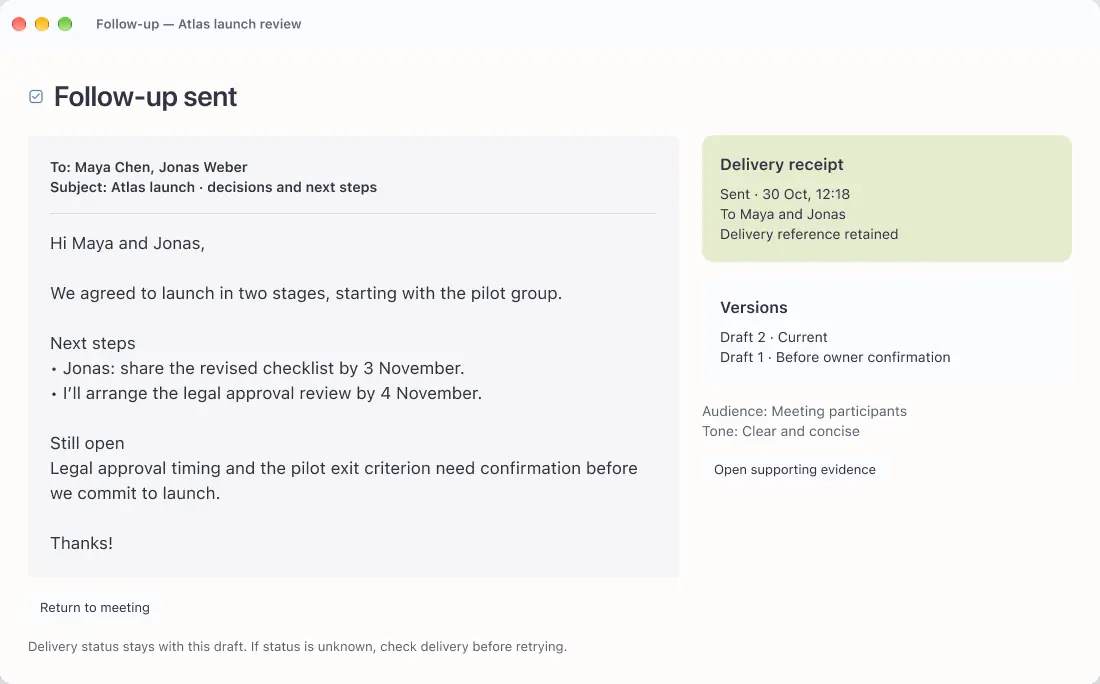
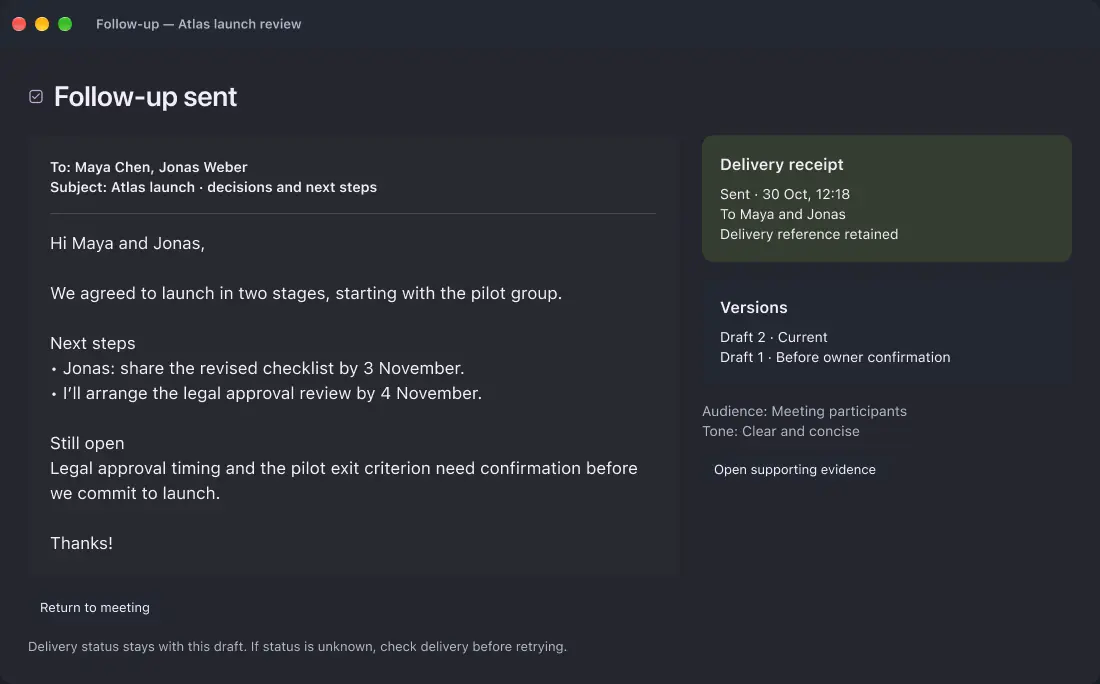
Drafts a follow-up on the local model from a follow-up you are tracking or a meeting’s confirmed outcomes, so every line can be checked against where it came from. Sending and publishing from Clarni are planned.
Clarni can draft a follow-up from a follow-up you are tracking or from a meeting's confirmed outcomes, on the local model; the draft stays editable on your device and you copy it out yourself.Status: In private beta
Clarni sends nothing to an email, chat, or document system on its own: in the private beta it has no way to send at all, and a draft leaves only when you copy it.Status: In private beta
When you choose to publish a reviewed draft or follow-up to a connected work tool, Clarni is designed to show the exact outgoing content and destination first, keep a local receipt, and never turn a one-time publish into ongoing sync without a separate, visible choice.Status: Planned
Drafts you edit and copy out yourself
Design preview macOS Light
Design preview macOS Dark
Design preview macOS Light
Design preview macOS Dark
- The problem
Writing the follow-up after a call means reconstructing what was agreed, and a confident sentence nobody actually said can end up in front of a client.
- The outcome
In the private beta you get an editable local draft that you copy out yourself. Versioned drafts from the sources you choose, showing recipient, scope, and receipts, followed by an exact delivery preview and an outcome receipt when you confirm, are planned.
- What it owns
- An editable follow-up draft written on the local model and kept on your device, which you copy out yourself.
- Planned: versioned drafts, so an earlier version is not lost when you change one.
- Planned: a composer showing the recipient, scope, and provider, with each line grounded in the receipts you select.
- Planned: a delivery review showing the exact destination and outgoing content immediately before sending.
- Planned: outcome receipts that record what was delivered, to which destination, and when, after you explicitly confirm.
- What it does not own
- A draft is not a delivered message: in the private beta Clarni cannot send it.
- External actions are never silent: it does not message clients or publish to other tools. Sending from Clarni is planned, and only with explicit just-in-time confirmation.
- Planned: a reviewed publish to a connected tool is a one-time delivery with a receipt, and never turns into ongoing sync without a separate, visible choice.
- It does not replace your email, chat, or documents: you copy a draft into them yourself.
- How it works
- You start a draft from a follow-up you are tracking or from a meeting’s confirmed outcomes.
- The local model writes the draft on your Mac, and you edit any word.
- You copy the draft out and send it yourself.
- Planned: you choose the recipient, scope, and sources; drafts keep their versions; and before delivery you see the exact destination and content, with an outcome receipt once you confirm.
Illustrative example: Atlas launch Recap the confirmed Atlas pilot decision in a draft you edit and copy into your email.
- Privacy and control
- A draft starts from a follow-up you track or a meeting’s confirmed outcomes, and nothing in it leaves your Mac unless you copy it.
- Planned: choosing the sources a draft may use before anything is generated.
- Nothing is sent, published, or written back to another system: in the private beta Clarni cannot send anything.
- Status and caveat
Status: In private betaStatus: Planned
In private beta: an editable follow-up draft on the local model, which you copy out yourself. Versioned drafts, choosing sources, the delivery review and receipts are planned. Drafts can contain mistakes, so check each line against its source. A draft is never a confirmed record.
- Who early access suits
People who write many client follow-ups and status updates and want each line traceable to what was said.
- Who should not join for this
Anyone looking for bulk outreach, or for messages that go out without a person reading and confirming them.
- In private beta
Capture, intentional imports, and recall
Recordings, notes, and documents come in only when you bring them, and stay as evidence you can search and cite.
Clarni records your meetings and turns them into searchable transcripts with speaker labels on your own device; in the private beta, transcription runs on Macs with Apple silicon.Status: In private beta
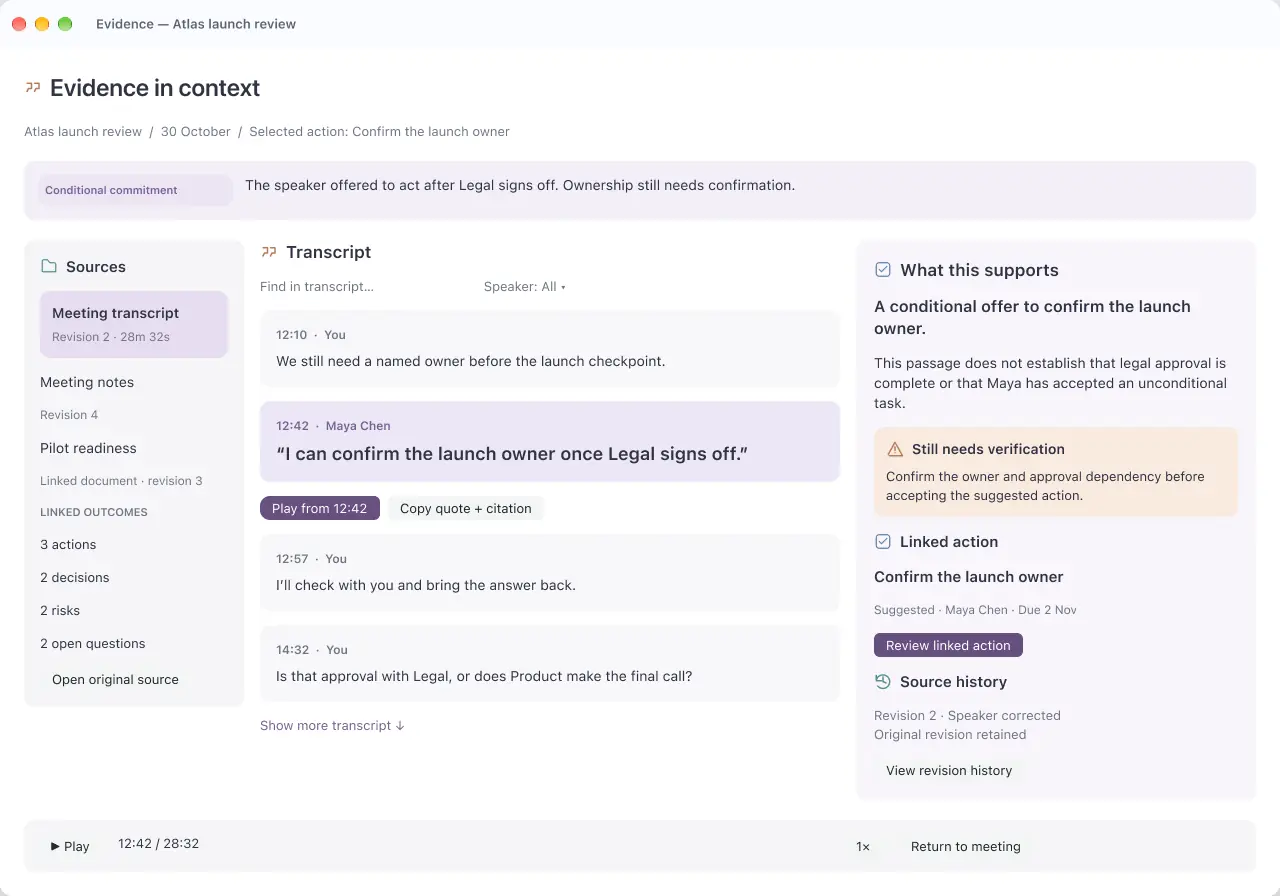
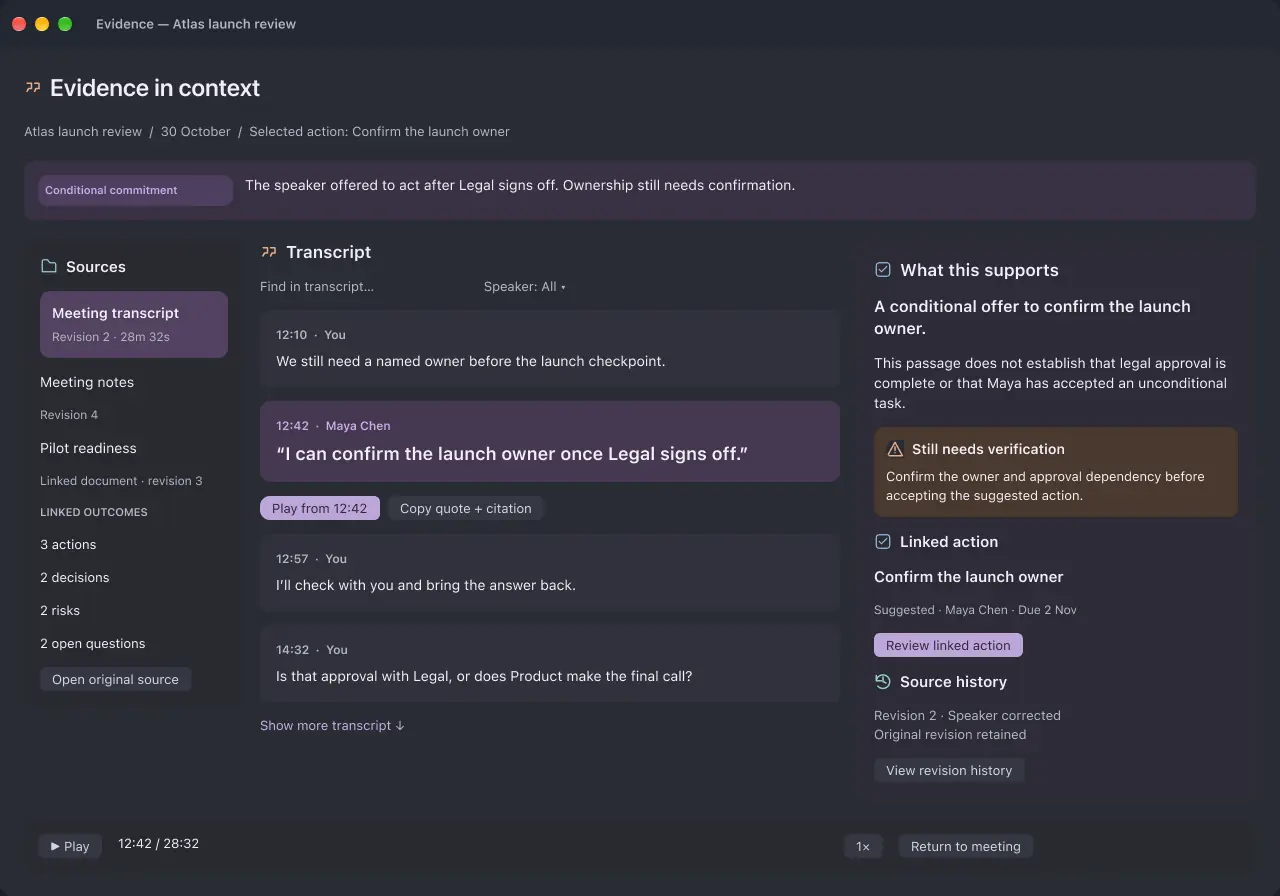
Each decision, commitment, or task can show the source it came from, such as the passage it was taken from or a meeting transcript excerpt with its timestamp.Status: In private beta
In the private beta, AI actions run on the local model on your Mac unless you add a model server: one on your Mac is used without asking, unless the model it serves runs in the cloud, and one on your network or in the cloud is used for a feature only after you allow it, with each request shown to you first until you choose to always allow it. A meeting you recorded is summarised when it ends, on by default, and you can turn that off.Status: In private beta
Every record keeps its receipt
Design preview macOS Light
Design preview macOS Dark
Design preview macOS Light
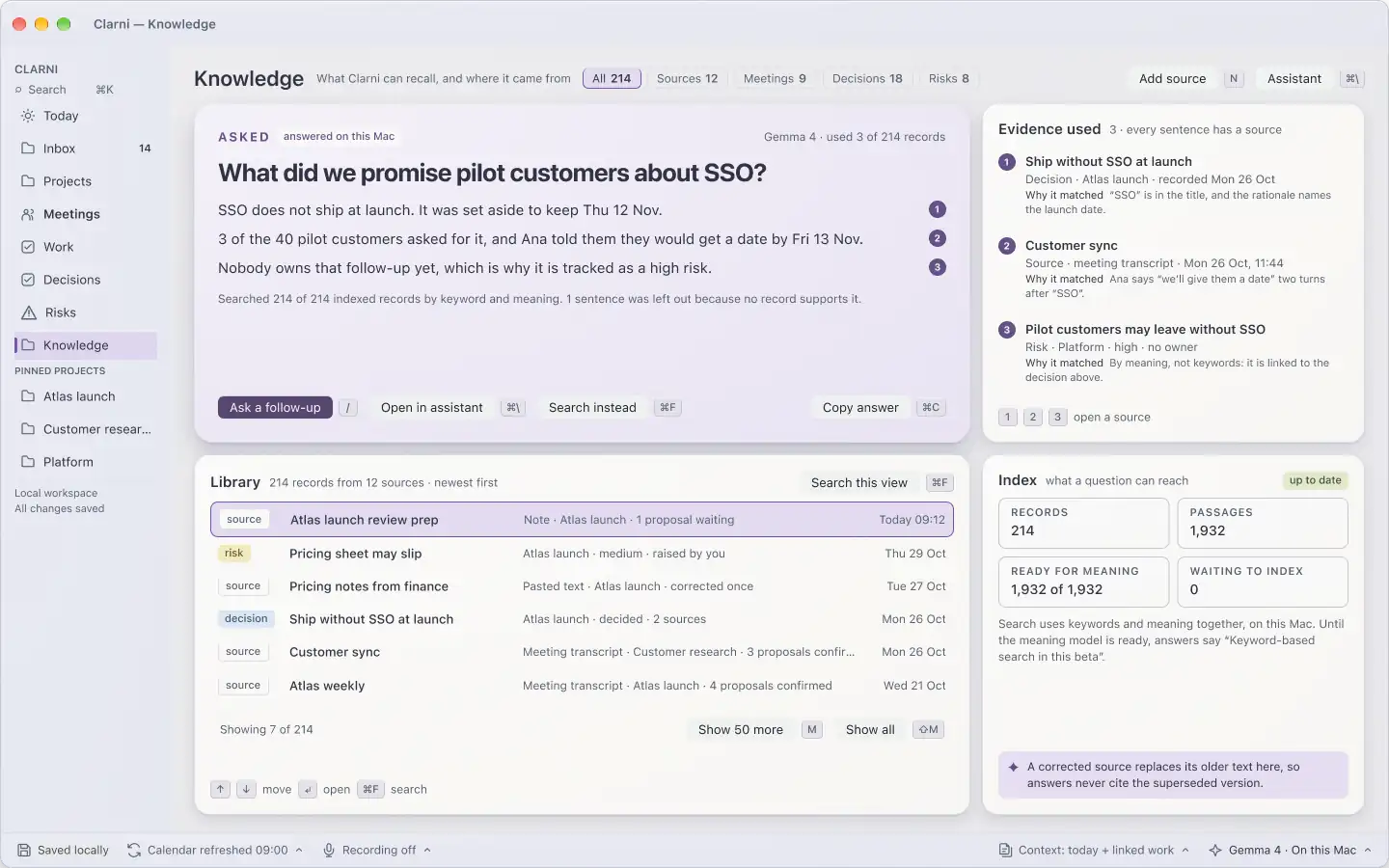
Detail — Sources cited in the SSO answer
Design preview macOS Dark
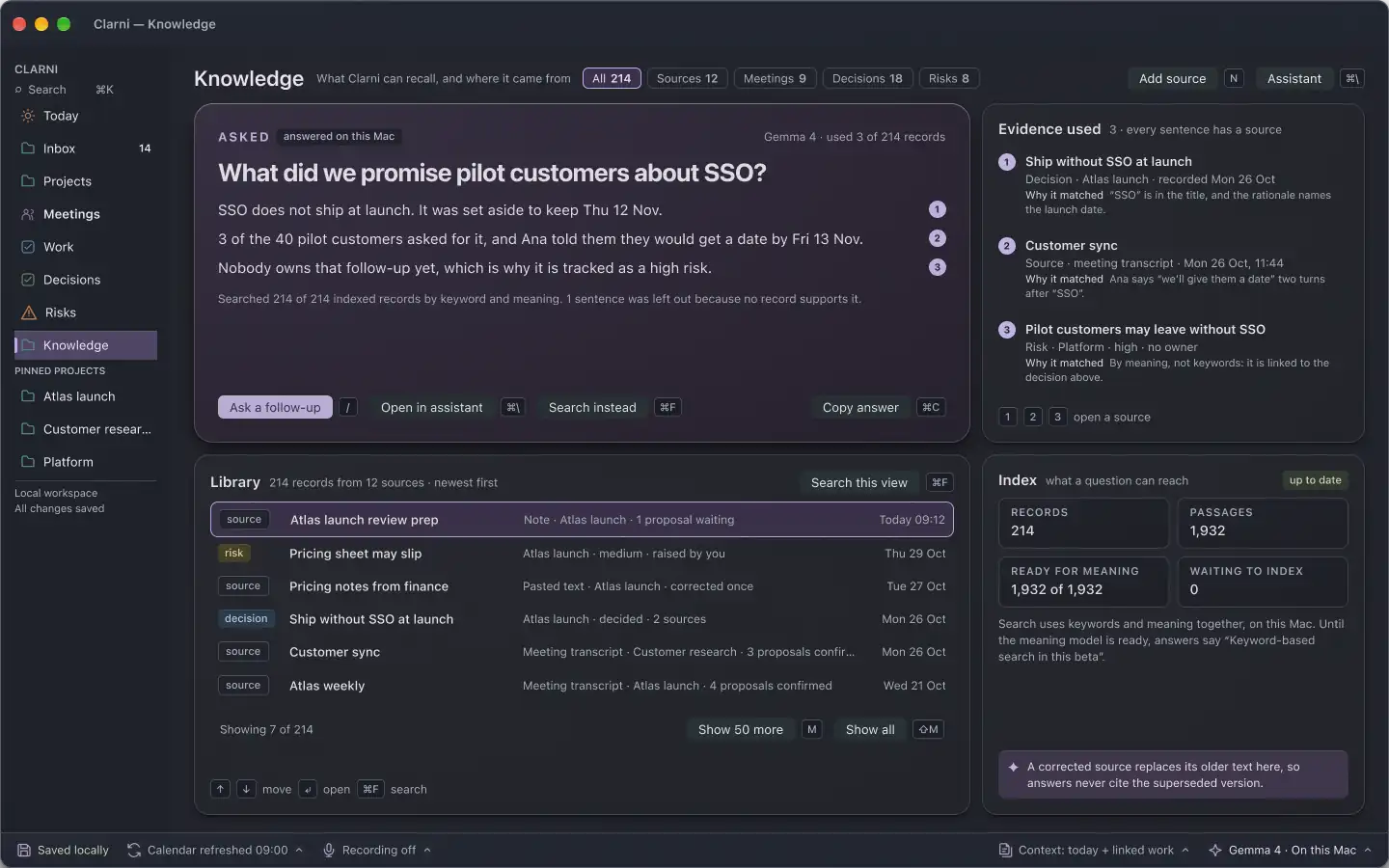
Detail — Sources cited in the SSO answer
- The problem
What was said on a call or written in a document is hard to find again when you need to check it, and you should not have to hand over your whole week to find it.
- The outcome
You bring in the sources that matter, inspect transcript context with receipts, and open the source behind any record.
- What it owns
- Sources you choose: notes and text you type or paste, files you drop in, a calendar file you import, and meetings you record.
- Searchable transcripts of the meetings you record, made on your device.
- Planned: a knowledge library of the sources you bring in.
- Source receipts with transcript context, speaker where known, timestamp or page, and verbatim excerpt.
- During a meeting you record, a few context cards that point out a possible new commitment, a decision or date that differs from the record, or a question nobody has answered, each citing the transcript line.
- What it does not own
- It does not watch your clipboard, your screen, or your communication apps. Nothing comes in unless you bring it.
- Transcripts are an input you can point back to, not the product, and your documents stay in the tools where you keep them.
- How it works
- You record a meeting, or type, paste, or drop in a note or file.
- It is kept as evidence: searchable transcripts, speakers where known, and timestamps.
- Later, you open the evidence window behind any record to check its context.
Illustrative example: Atlas launch Check the 11:44 transcript excerpt behind the confirmed Atlas pilot decision.
- Privacy and control
- You choose each source, and bringing one in is always your action.
- Bringing a source in sends it nowhere: it stays on your device, and it reaches an AI only on your Mac unless you allowed a model server for that feature.
- Status and caveat
Status: In private beta
In private beta: meeting recording and transcription with speaker labels on Macs with Apple silicon, and notes and text you type, paste, or import. Transcripts can contain errors, so each receipt keeps the original excerpt to check against.
- Who early access suits
People who need to find and cite what a client actually said or wrote, without collecting everything they work on.
- Who should not join for this
Anyone looking for a stand-alone notetaker, or for calls and messages to be captured without choosing them.
- In private beta
- Design direction
Local AI and user control
Local-first: work data stays on your device, encrypted, and AI runs on a local model on your Mac. A model server on your network or in the cloud is used only for a feature you allowed it for.
In the private beta, your workspace stays on your own device, encrypted with your passphrase, and Clarni's AI runs on your Mac by default. Local by default. Nothing leaves your Mac unless you allow it.Status: In private beta
In the private beta, AI actions run on the local model on your Mac unless you add a model server: one on your Mac is used without asking, unless the model it serves runs in the cloud, and one on your network or in the cloud is used for a feature only after you allow it, with each request shown to you first until you choose to always allow it. A meeting you recorded is summarised when it ends, on by default, and you can turn that off.Status: In private beta
In the private beta, AI runs on your Mac with a Gemma 4 model that Clarni recommends for your Mac's memory and adds only when you ask, checking it before use.Status: In private beta
AI in Clarni retrieves, compares, suggests questions, drafts, and proposes; what it produces stays a proposal you can inspect and edit, and in the private beta it cannot send anything to another system.Status: In private beta
Model servers are an explicit choice: the local model stays the default, and a server on your network or in the cloud is used only after you allow it for a feature.Status: In private beta
We are exploring reusable prompt templates for common workflows, so the way Clarni drafts and answers follows your own guidance.Status: Design direction
Clarni is useful from the first note without an account, a recording permission, or an AI model: after you enter your beta license, you create an encrypted workspace with a passphrase and add the local model only when you choose.Status: In private beta
Local by default, a model server only when you choose
Design preview macOS Light

Design preview macOS Dark

- The problem
Client work is sensitive, and many AI tools send it to a provider before you have seen what is going, or to whom.
- The outcome
AI assistance that runs on your device by default. A model server you add on your network or in the cloud is used for a feature only after you allow it, with each request shown first until you choose to always allow it.
- What it owns
- Work data is stored on your own device, encrypted.
- A local model runs every AI action on your Mac, sized to its memory, 8 GB or more.
- Manual operation works from your first note without an AI model: the model step at first run can be skipped.
- Model servers you add: a key you add is kept in your Mac’s Keychain and shown masked, and adding a server is separate from allowing it for a feature.
- Choice of server and model per feature, so each task, such as drafting, search or summaries, goes where you routed it.
- Design direction: we are exploring reusable prompt templates for common workflows; this is a design direction, not a promised feature.
- Planned: clear provider failure banners that preserve your drafts, report no false success, and offer retry tests without sending workspace content.
- What it does not own
- It does not choose a model server for you, or switch one on without your explicit choice.
- It does not fall back silently to a model server on your network or in the cloud if local resources are insufficient or if a server fails.
- Adding a model server does not allow it: each server is allowed per feature, and each request is shown to you first until you choose to always allow it.
- A server you allow handles what you send it under its own terms; Clarni does not set them.
- It does not guarantee hardware fit, model speeds, or on-device output quality across differing systems.
- How it works
- An AI action you start runs on the local model on your Mac.
- The result returns as a proposal or draft for your review.
- If you add a model server, you add it in Settings and choose which features use it.
- Before a request goes to a server on your network or in the cloud, you see the exact request, until you choose to always allow it.
- Planned: you approve or cancel. If an authentication or network error occurs, the planned handling is to report the error without claiming success, preserve your drafts, and make no silent fallback; we make no promise about what a provider may have received or generated before the error.
Illustrative example: Atlas launch Drafting the follow-up for the Atlas launch runs on the local model, so the draft and its sources stay on your Mac.
- Privacy and control
- Local-first is not offline-only: the privacy page lists what the beta app does send, and none of it is your work content for an AI provider unless you allowed a model server.
- There is no silent fallback to a server: a feature uses one only after you allowed it.
- Model servers stay unused until you allow them for a feature; a key you add is kept in your Mac’s Keychain and shown masked.
- Planned: provider errors that preserve your drafts and report no false success, with retry tests that send no workspace content.
- Status and caveat
Status: In private betaStatus: Design direction
In private beta: the local model on Macs with Apple silicon and 8 GB of memory or more. From Clarni 0.1.30, model servers you add and a server per feature are in the private beta. Reusable prompt templates are a design direction we are exploring. Models on your own device depend on system resources and may be slower or less capable than cloud models; we make no speed or quality promise.
- Who early access suits
People whose clients expect their material to stay under the professional’s control, and who want to decide case by case whether an AI provider sees it.
- Who should not join for this
Anyone who needs a guaranteed offline-only setup, a specific model or provider, or a set speed or quality from on-device AI.
- Planned
Connected assistants
How Clarni is designed to work with assistants you already use, keeping reading and proposing strictly scoped to project context you choose to share.
Assistants you already use are intended to read only the project context you choose to share, and can only propose changes that you then review.Status: Planned
Scoped assistant access you control
- The problem
Connecting an assistant often means granting broad access across your work and hoping it reads only what you intended.
- The outcome
An assistant reads only the project context you explicitly choose to share on your device, and any suggested change arrives as an inspectable proposal for your review.
- What it owns
- Read: assistants are intended to read only the project context you choose to share, configured on your device.
- Propose: changes from an assistant are designed to arrive as proposals you review like any other, keeping history and rationale intact.
- What it does not own
- No assistant product, integration, or provider is named on this site: support depends on each provider’s official capabilities and on tested compatibility.
- It is not designed to let an assistant take external actions without you, or bypass your review before records change.
- How it works
- You choose which project context an assistant may read on your device.
- The assistant inspects the scoped context and suggests a change.
- The suggestion arrives as a proposal with its source receipt, waiting for your personal review.
Illustrative example: Atlas launch Sharing the Atlas launch notes allows an assistant to propose a revised migration checklist, which stays in the proposals queue until you accept or dismiss it.
- Privacy and control
- Reading and proposing stay separated from external writing: letting an assistant read context does not allow it to write to external systems.
- Assistant access is designed to respect local vault boundaries, so locked or unshared projects remain inaccessible.
- Status and caveat
Status: Planned
Planned, not in the private beta. Compatibility with a particular assistant is not promised and depends on testing against each provider’s official capabilities.
- Who early access suits
People who already work with an assistant and want it to see the right project context without handing over everything.
- Who should not join for this
Anyone who needs a specific named assistant product supported immediately, or an assistant that acts independently without human review.
- In private beta
- Planned
Calendar and work-tool connections
Reads the calendar on your Mac, or a calendar file you import, without writing back. Choosing calendars, and publishing reviewed drafts to connected work tools with exact previews, confirmations, and local receipts, are planned.
Clarni reads the calendar on your Mac, or a calendar file you import, shows each meeting in your agenda with its preparation, and never writes back to, invites from, or changes an external calendar.Status: In private beta
Choosing which calendars Clarni reads, connecting a calendar account, and reviewing a calendar import before anything lands are planned.Status: Planned
When you choose to publish a reviewed draft or follow-up to a connected work tool, Clarni is designed to show the exact outgoing content and destination first, keep a local receipt, and never turn a one-time publish into ongoing sync without a separate, visible choice.Status: Planned
Clarni sends nothing to an email, chat, or document system on its own: in the private beta it has no way to send at all, and a draft leaves only when you copy it.Status: In private beta
Connections you can read and explain
Design preview macOS Light
Design preview macOS Dark
- The problem
Connecting calendars and work tools often risks accidental calendar invites, unexpected edits, or unreviewed sync that alters external systems without your approval.
- The outcome
You see your meetings and their preparation with read-only calendar access. Reviewing bounded event imports before they land, and publishing drafts to connected work tools with exact destination previews, just-in-time confirmation, local receipts, and ongoing sync as a separate visible choice, are planned.
- What it owns
- Read-only calendar access: Clarni reads the calendar on your Mac, or a calendar file you import, and never writes back, invites attendees, or modifies an external calendar.
- Planned: choosing which calendars it reads.
- Planned: bounded reviewed import. Calendar events are imported through a bounded review that checks new, duplicate, and timezone-ambiguous entries before they land, rather than continuous sync.
- Planned: one-time outbound publication. Publishing a reviewed draft to a connected work tool is designed to display the exact destination and outgoing content for explicit confirmation immediately before anything is sent.
- Planned: local receipts. Every confirmed external publication is designed to record an immutable local outcome receipt with timestamp and delivery details.
- Planned: a separate sync choice. Publishing once does not enable ongoing sync; any future ongoing sync is designed as a separate, visible choice with pause controls and an activity log.
- What it does not own
- It does not write events, create invites, update RSVPs, or alter schedules in your external calendars.
- It does not name or promise support for specific calendar providers or work-tool platforms until verified on supported operating systems.
- One-time draft publication is not continuous background synchronization, and a remote change never silently completes local work.
- It is not designed to replace your issue tracker, task manager, document workspace, or calendar service.
- Provider and platform names are not currently verified and remain omitted; visible integration names in design previews are illustrative only.
- How it works
- Planned: you select which calendars from a connected account are read, and review new or ambiguous events before importing them into your schedule view.
- Planned: when you prepare a follow-up or task in Draft Studio, you map the destination tool, workspace, and format.
- Planned: before publication, Clarni displays the exact outgoing payload and target destination for your review.
- Planned: you confirm the send immediately before the external write, which executes once and records a local receipt without enabling continuous sync.
- Planned: any ongoing synchronization remains a distinct setting that you can inspect, pause, or disconnect at any time.
Illustrative example: Atlas launch Planned: publishing the Atlas launch follow-up to a mapped work-tool destination is designed to show the final text, target page, and delivery confirmation, leaving calendar events in read-only view and logging a local receipt.
- Privacy and control
- Calendar connections are strictly read-only: Clarni has no capability to write back, send meeting invites, or change external calendar state.
- Planned: every external publish is designed to require explicit confirmation immediately before transmission, with the exact destination and content inspectable on your device.
- Planned: a one-time publish never turns on background sync without a separate, explicit choice; sync activity logs and pause controls are planned on your device.
- Status and caveat
Status: In private betaStatus: Planned
In private beta: reading the calendar on your Mac and importing calendar files, read-only. Choosing calendars, connecting accounts, reviewed imports, and work-tool publishing are planned. Specific calendar and work-tool providers are not promised and depend on verified compatibility. Designs shown are illustrative design previews.
- Who early access suits
Professionals who need meeting context beside their project work and want reviewed, one-time publishing to external tools without giving up local control.
- Who should not join for this
Anyone who requires two-way calendar sync, automated invite management, or immediate support for specific named work-tool integrations.
- In private beta
Project Ask
With a project selected, Ask answers from that project’s sources and cites receipts. For broader questions, choose All records. Ask makes no changes without you.
Ask Clarni answers a question about a project from that project's own sources, cites each point, says when the sources hold no supported answer, and changes nothing on its own.Status: In private beta
Each decision, commitment, or task can show the source it came from, such as the passage it was taken from or a meeting transcript excerpt with its timestamp.Status: In private beta
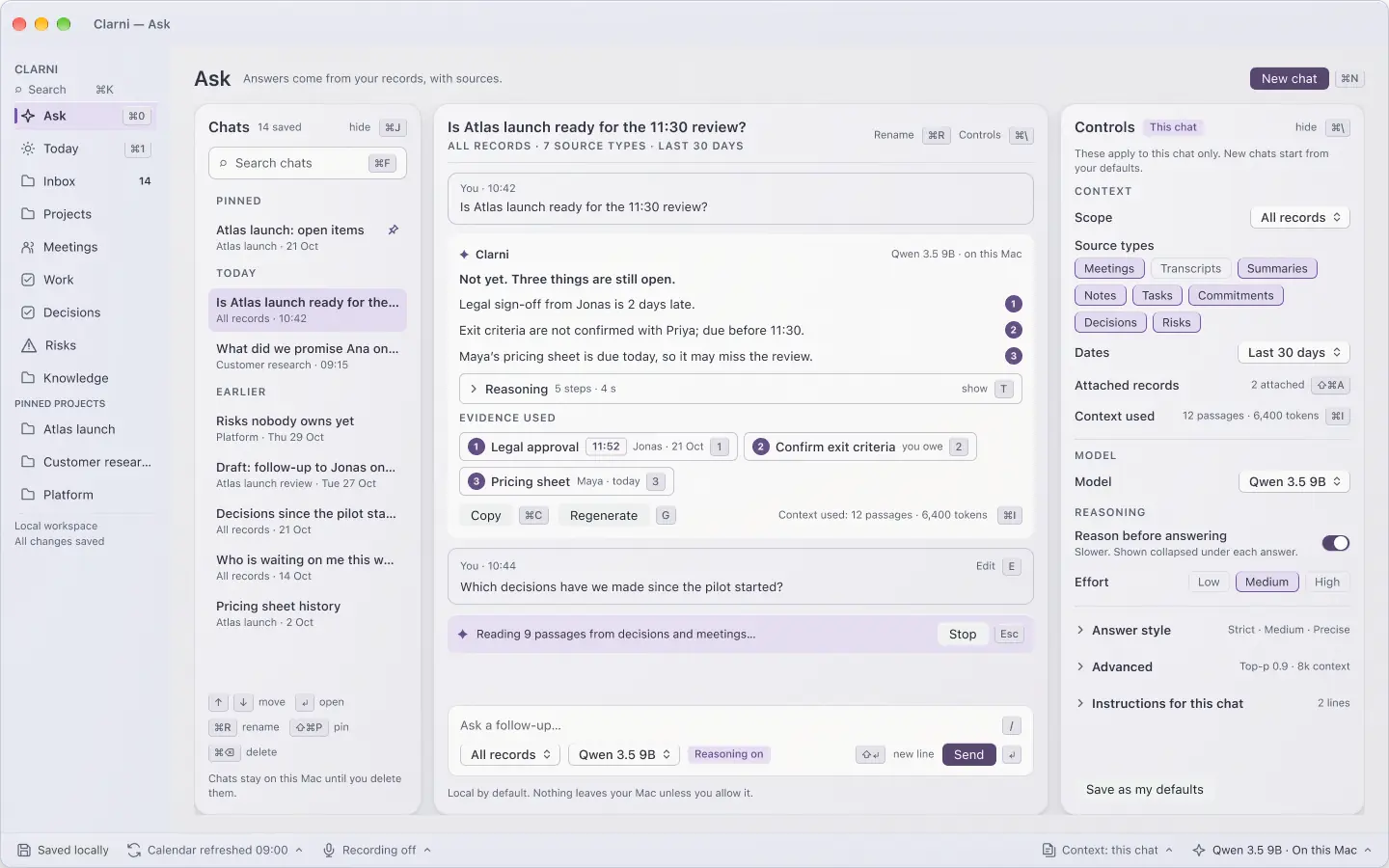
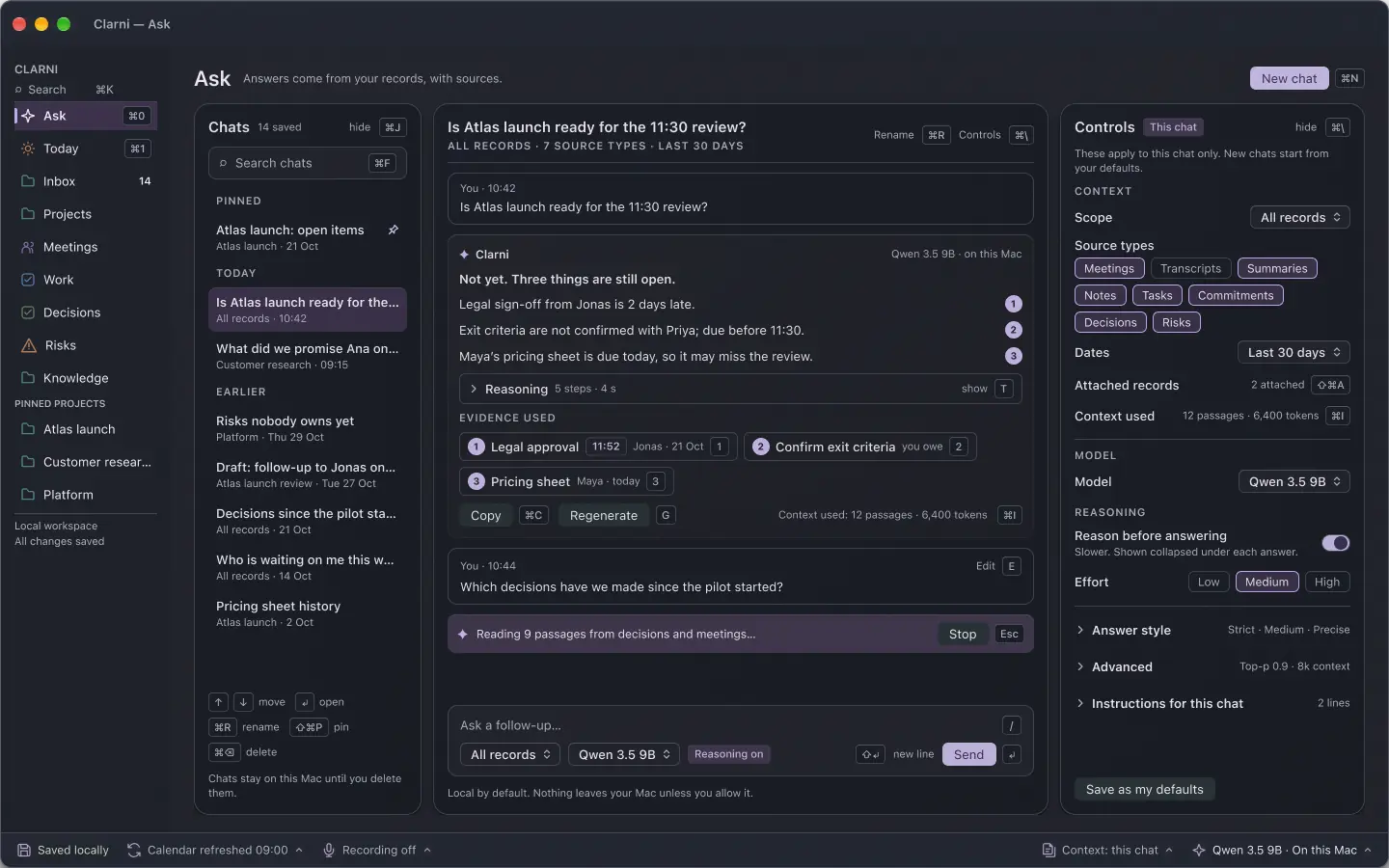
Ask provides a dedicated conversation screen with saved chats, cited answers, and scope selection for All records or a specific project, changing nothing on its own.Status: In private beta
An assistant pane can be pinned beside a view, with scope-control UI and citation opening from active screen context or all records.Status: In private beta
Ask your project, with the evidence
Design preview macOS Light
Detail — First cited source
Design preview macOS Dark
Detail — First cited source
Design preview macOS Light
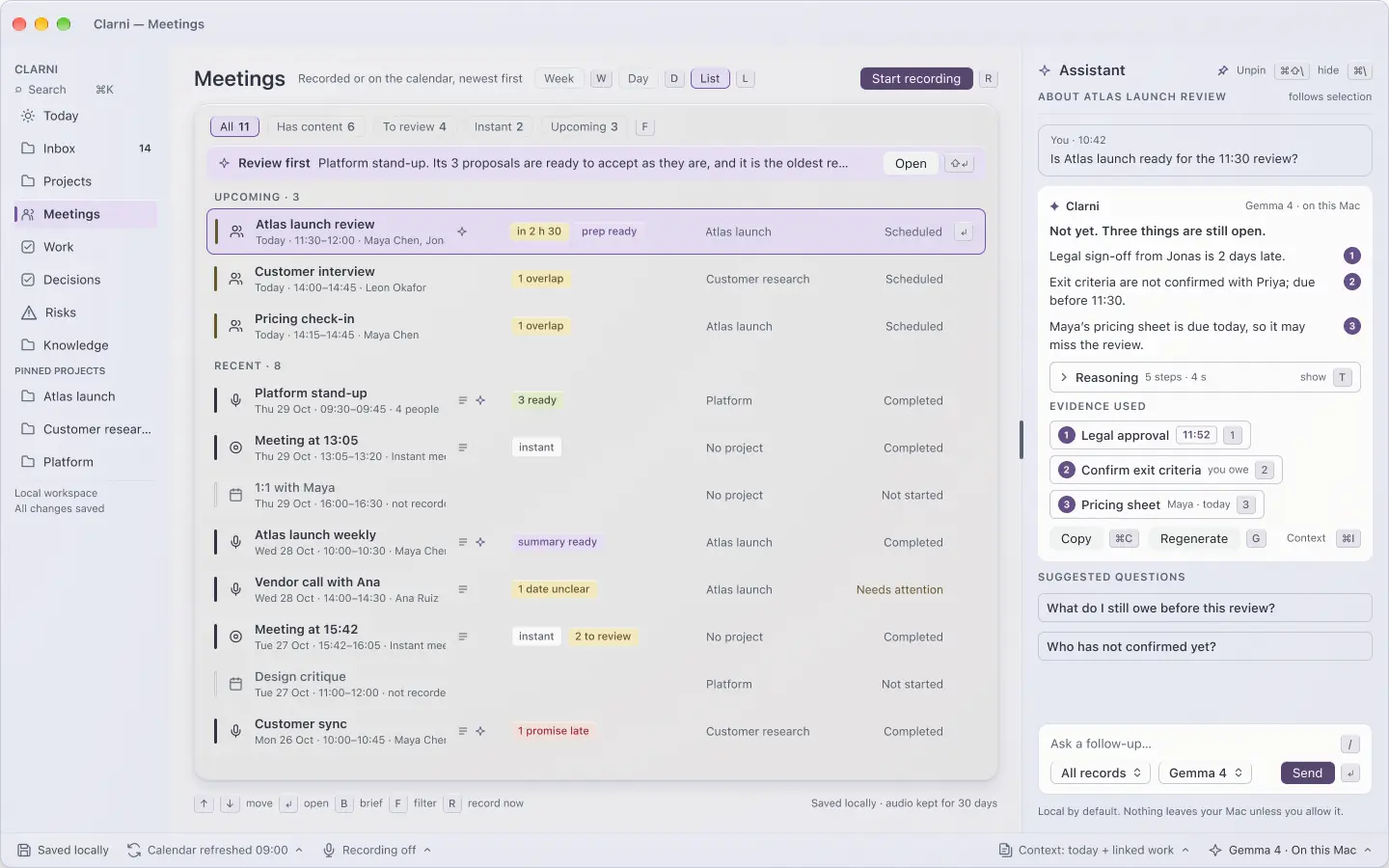
Detail — Pinned assistant pane
Design preview macOS Dark
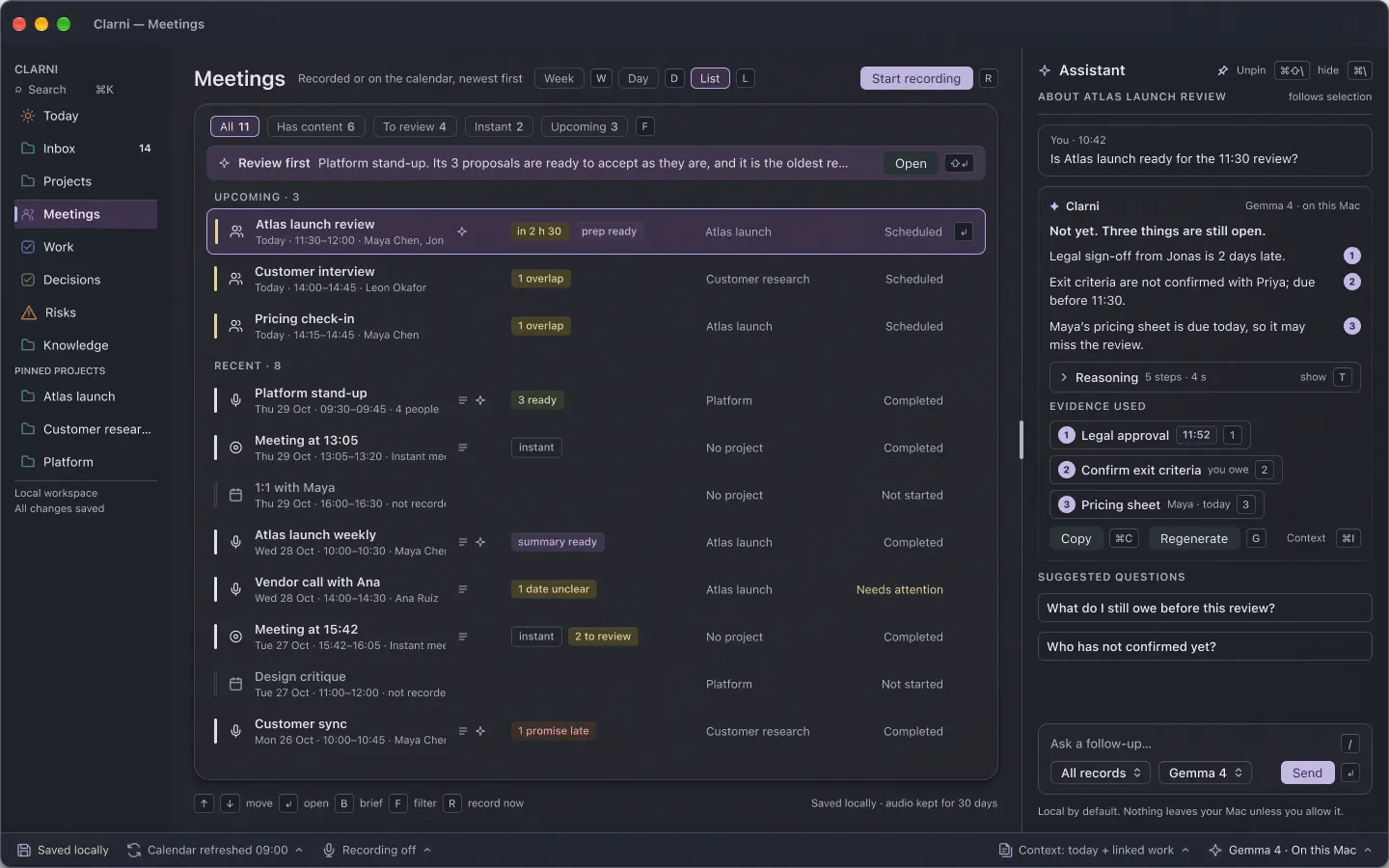
Detail — Pinned assistant pane
- The problem
Finding answers across weeks of client project notes and recordings means rereading everything, while general AI assistants search outside the boundary and invent details when records are missing.
- The outcome
With project scope selected, you get a cited answer strictly from that project’s sources, or honest abstention when no record exists. All records is a separate choice for broader questions. Ask changes nothing without you. Flagging sources that disagree is planned.
- What it owns
- In project-scoped retrieval: answers scoped strictly to the project you select, synthesized from its own imported sources and records.
- Dedicated Ask conversation screen: full Ask conversation, All records scope shown, numbered answer citations, Evidence used chip 1 and Context used entry.
- Assistant pinned beside a meetings list with an upcoming meeting selected, with a cited answer and source chips.
- Citations linking each point in an answer back to its source receipt and timestamp.
- Honest abstention: says when the sources hold no supported answer rather than guessing.
- Read-only retrieval in Ask: changes nothing without you; copy, export, or an explicit proposal are the only follow-ups (the separate pinned pane is not assigned a blanket read-only contract).
- What it does not own
- Ask is not an active agent: it does not take external actions, modify project state, complete tasks, or message anyone.
- When project scope is selected, it does not search outside the chosen project: other client projects, external web sources, and unimported files remain unread.
- Ask is distinct from in-meeting assistance, which operates during live calls rather than across a project library.
- Pictured filter paths, model selectors, and selection-following controls in design previews illustrate interface direction and do not assert unverified end-to-end capabilities.
- How it works
- In Ask, you select a project or choose all records to ask about commitments, decisions, or history (the pinned assistant pane is a separate scenario beside a meetings list).
- Clarni retrieves candidate evidence from those sources and synthesizes an answer with citations.
- If evidence is absent, Ask says the sources hold no supported answer.
- You inspect the cited receipts, and any subsequent action remains an explicit proposal for your review.
Illustrative example: Atlas launch Ask about the legal sign-off commitment, then check the cited source (Atlas weekly, 21 Oct · transcript · Jonas · 11:52: “I’ll get you legal sign-off. Next Friday at the latest.”). The cited passage records a promise only, not approval received or a precise overdue interval; no date is derived from “next Friday”. Checking the record verifies the promise without claiming the deadline was missed or approved.
- Privacy and control
- When project scope is chosen, retrieval is strictly bounded by the project you choose; no other project context is read.
- Broader searches across all records or docking the assistant pane are explicit choices under your control; project-only and read-only boundaries apply to Ask rather than the entire pane.
- Project-scoped Ask is read-only: it changes nothing without you and requires you to review any follow-up (not assigned as a blanket contract to the entire pane).
- Status and caveat
Status: In private beta
In private beta, on Macs with Apple silicon. Answers are synthesized from your sources and can contain errors, so verify each citation against its receipt.
- Who early access suits
Studio leads and consultants who need reliable, cited answers from past client conversations without digging through hours of audio.
- Who should not join for this
Anyone looking for an agent that acts across external systems, or a general chatbot that searches the broader web.
- In private beta
- Planned
Native desktop settings
Settings open inside the main window, in light and dark appearance, and keep capture permissions, notifications, usage data and crash reports, and updates as separate choices, with signed updates applied only on a restart you choose.
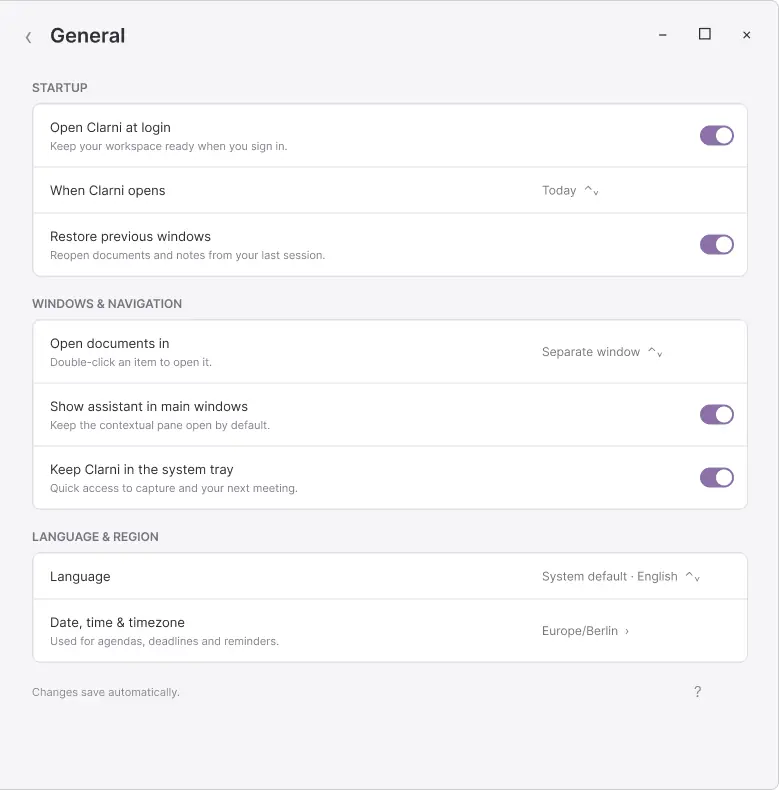
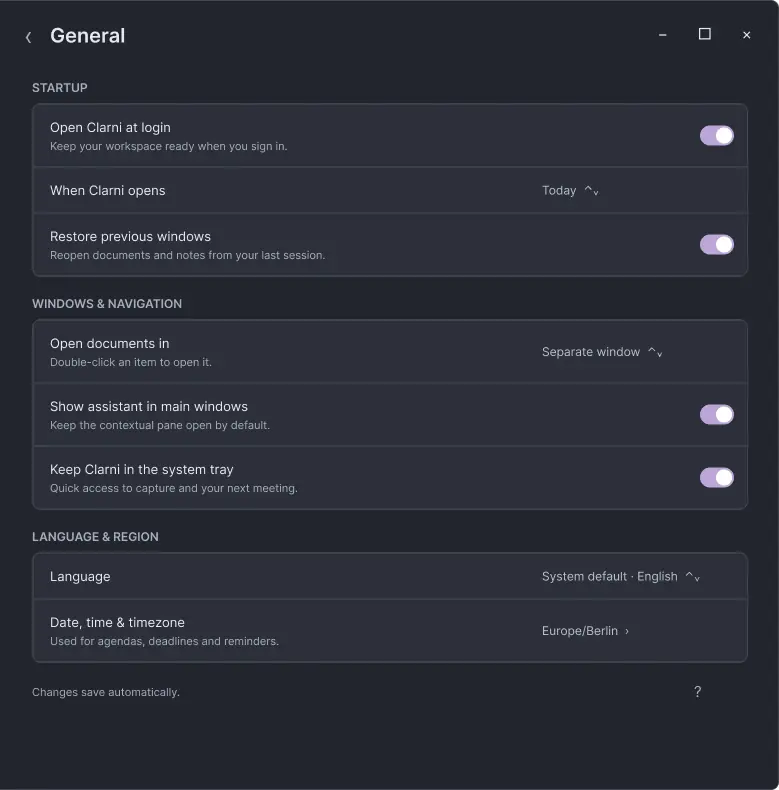
Settings open inside the main window, follow light and dark appearance, and keep capture permissions, notifications, usage and crash reports, and updates as separate choices.Status: In private beta
In the private beta, usage data is off until you turn it on, during setup or at any time in Settings; it is tied to a random ID created on your Mac, not to your name or email, and it never includes your content. Crash reports stay on your device until you choose to send one.Status: In private beta
The private beta uses a license key issued to your email address that Clarni checks on your device; checking it sends nothing to a license server, and no account is needed.Status: In private beta
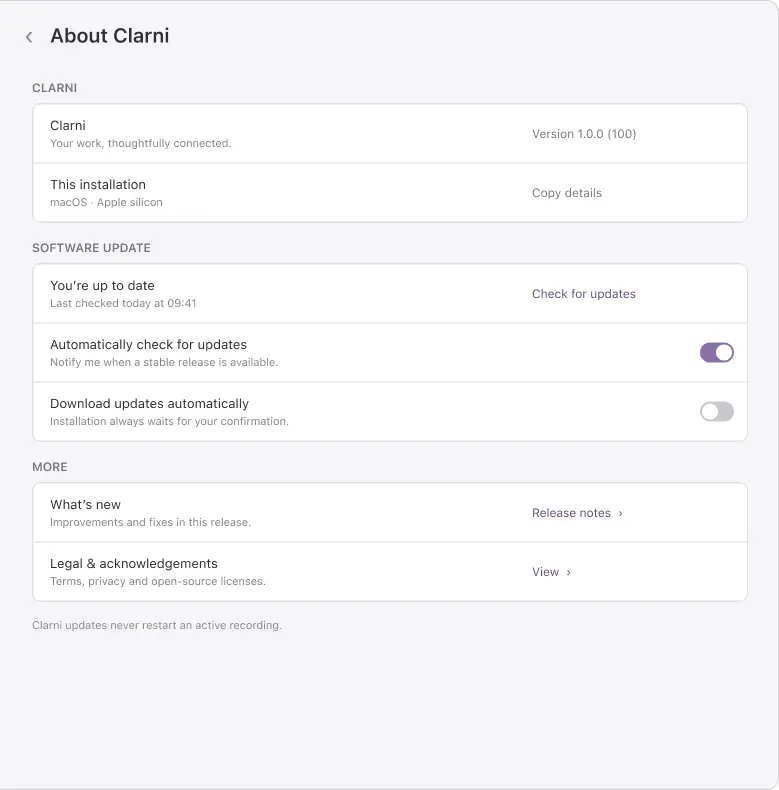
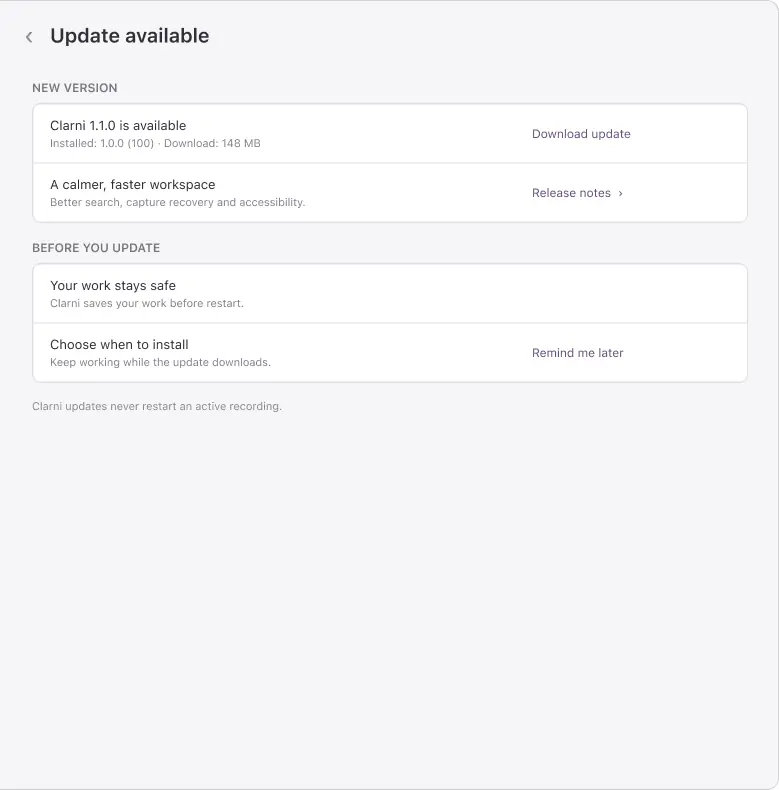
Updates are signed and checked before they are applied, take effect only when you choose to restart, and checking for one sends no workspace content.Status: In private beta
Scheduled backups are planned; in the private beta you back up when you ask.Status: Planned
Seeing and managing the devices that use your license is planned.Status: Planned
Settings that feel at home on your desktop
Design preview macOS Light
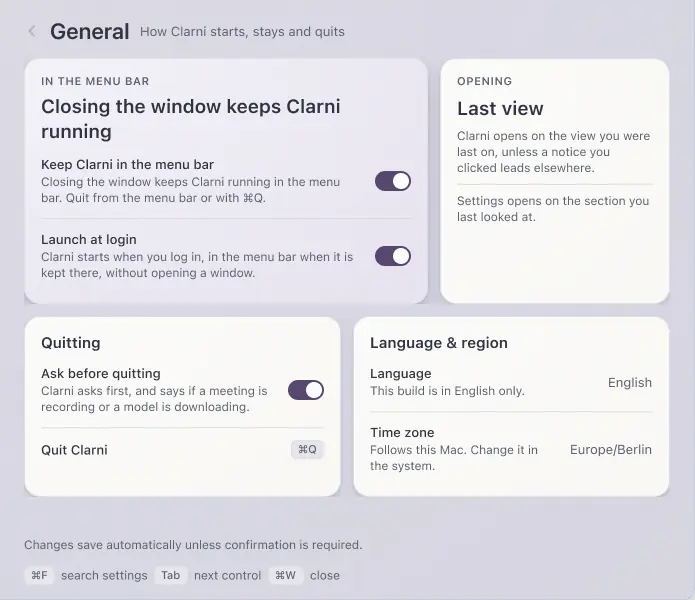
Design preview macOS Dark
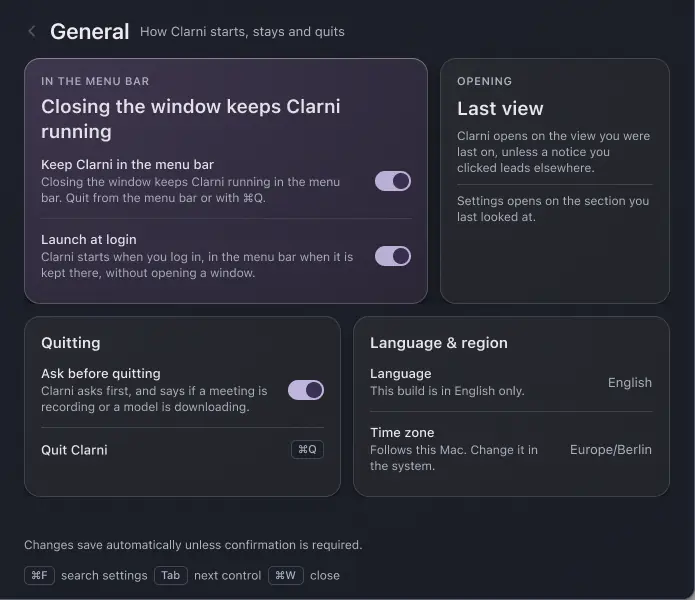
Design preview Windows Light
Design preview Windows Dark
Design preview macOS Light
Design preview macOS Light
Design preview macOS Light
Design preview macOS Light
- The problem
Desktop tools often bury preferences in web-wrapper menus, bundle analytics or update checks into all-or-nothing consent toggles, require an online account to configure local behavior, or restart disruptively during active meetings.
- The outcome
You configure Clarni in Settings inside the main window, in light or dark appearance: capture permissions, notifications, usage data and crash reports, your license, and updates each have their place, and an update waits for a restart you choose.
- What it owns
- Appearance: system, light, and dark.
- Capture permissions requested at the point of use, kept separate from notifications.
- Usage data and crash reports as separate choices: usage data is off until you turn it on in the private beta; a crash report is sent only when you choose.
- A beta license key checked on your device, sending nothing to a license server.
- Signed updates: the signature is checked before an update is applied, and the update waits for a restart you choose.
- Keyboard shortcuts for the main views, with full keyboard use still being built.
- What it does not own
- It is not a web account portal or subscription console; no price, plan, seat count, or payment action is managed in the app.
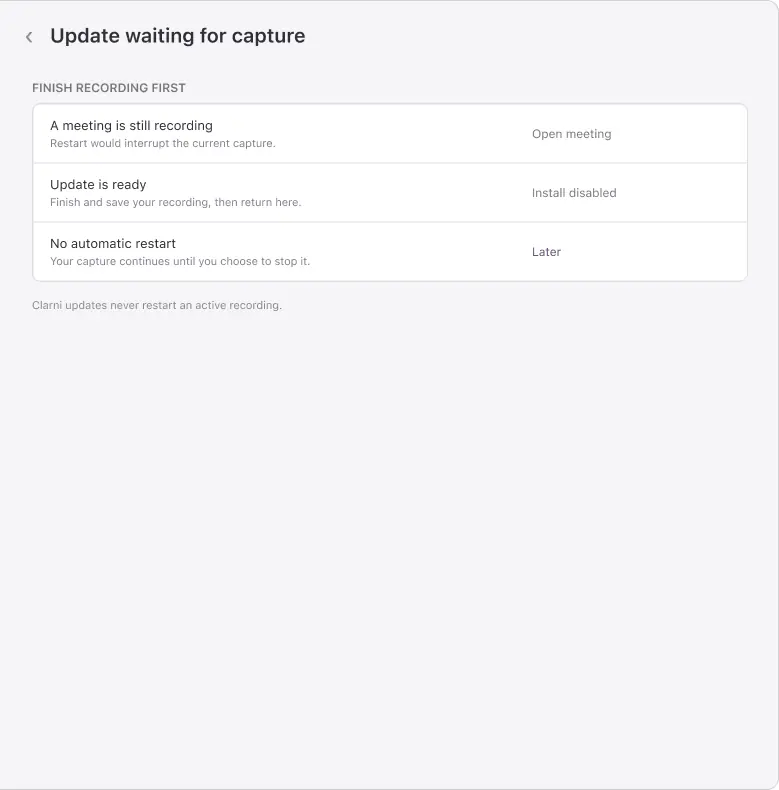
- It does not restart to update during a recording; an update waits until the recording has finished.
- The private beta runs on Macs with Apple silicon; Windows and Linux settings are not part of it, and the Windows previews show work that is in development.
- Scheduled backups and a list of the devices that use your license are planned, not in the private beta.
- How it works
- You open Settings inside the main window and move between its pages.
- A capture permission is asked for when a source first needs it, and you can revoke it in your system settings.
- In setup, and later in Settings, you can choose whether to share usage data, which is off by default; crash reports wait on your device until you choose to send one.
- When an update is ready, its signature is checked, and it is applied only when you choose to restart.
Illustrative example: Atlas launch During an active recording, a ready update waits until the recording ends; preferences and updates remain separate choices.
- Privacy and control
- Usage data, crash reports, and update checks are separate choices on your device.
- Checking your license sends nothing, and never includes your notes, recordings, or workspace content.
- Updates are signed, verified, and applied only on a restart you choose, never during a recording.
- Status and caveat
Status: In private betaStatus: Planned
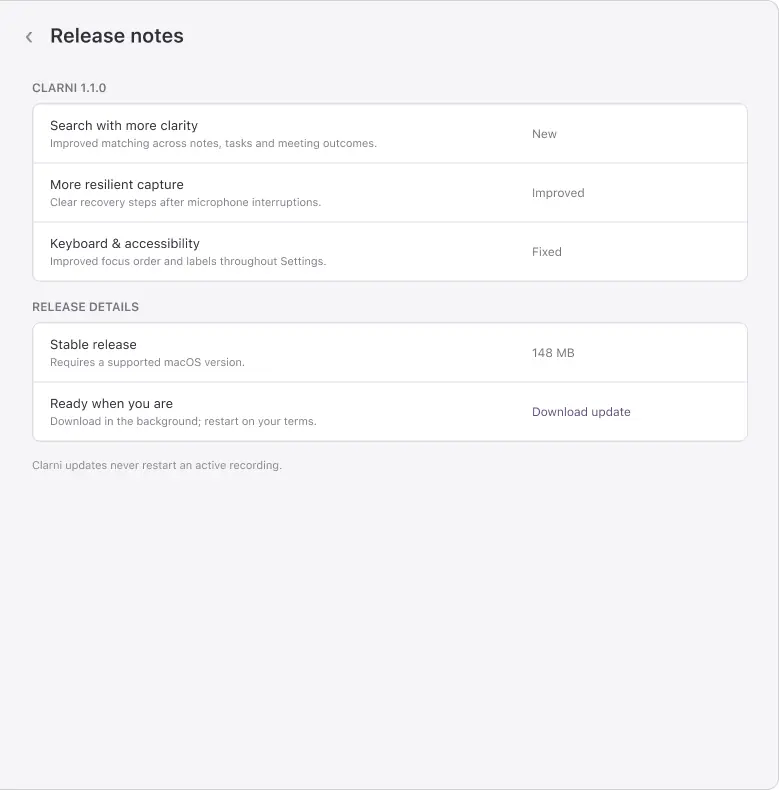
In private beta, on Macs with Apple silicon. The macOS General preview shows the settings sheet inside the main window in paired light and dark appearance; Windows previews show settings that are in development; and About, Update notice, Update waiting for capture, and Release notes are Light-only historical design previews without a dark partner. The license device list and scheduled backups are planned. Version numbers, dates, and demo values in design previews are illustrative.
- Who early access suits
Consultants and professionals who expect desktop settings with separate privacy choices, and updates that never disrupt a client meeting.
- Who should not join for this
Anyone looking for a cloud-administered web console, or who needs Windows or Linux today.